Google Calendar Integration Outlook: Setup and Fixes

A customer calls to move a service visit. You change the appointment in Google Calendar, but your colleague still sees the old slot in Outlook and offers it to someone else. Both calendars look connected. They just aren't updating the same way.
Google Calendar integration with Outlook starts with choosing the right direction and refresh behavior, not finding a connect button. For a small business answering customer calls, that choice determines whether staff, and an AI assistant supporting them, can trust the availability they see.
Choose the Connection Method That Fits Your Calendar
The connection method decides whether an event merely appears in Outlook or stays editable and accurate across both environments. Start with what your team needs to do, then choose the connection.
Google Calendar and Outlook connection methods compared
| Method | Direction | Update behavior | Best for |
|---|---|---|---|
| Imported Google Calendar snapshot | Google to Outlook, one time | Static, does not update automatically | A quick read-only check |
| iCal subscription | Google to Outlook, read-only | Pulls changes over time; may take up to 24 hours, according to Microsoft Q&A guidance | Viewing availability |
| Google Workspace Sync for Microsoft Outlook (GWSMO) | Two-way for Google Workspace calendars | Syncs about every 10 minutes and when an event is created or an invitation arrives, as described in Google's calendar connection guidance | Managing Workspace calendars inside Outlook |
| Outlook New client account sync | Outlook to Google not automatic | Account connection isn't a guarantee of automatic reverse synchronization | Checking your client version first |
A snapshot isn't a subscription
An import copies the calendar as it stands when you import it. If a customer later cancels, that imported copy won't remove the appointment automatically. Importing again isn't a reliable maintenance routine, either, because you can end up with overlapping copies.
A subscription keeps a connection to the original calendar and retrieves changes over time. That's useful for displaying another diary alongside your own, but read-only visibility isn't the same as dependable booking availability.
Say an electrician opens a cancellation slot for an urgent visit. A subscribed calendar might still show that period as occupied, or show a newly booked period as free. Use the original booking calendar when making a commitment to a customer.
Choose for the job, not the interface
GWSMO lets users manage primary, created, and shared Google Workspace calendars through Outlook. It suits teams that want Outlook as their working interface without moving their calendar ownership away from Google Workspace.
Don't assume New Outlook automatically sends Outlook events back to Google. Client support and the connection method matter, and GWSMO requires a compatible Outlook installation rather than acting as a universal add-on for every client.
If your wider workflow runs through Microsoft services, the Microsoft 365 integration guide helps frame the calendar connection within that customer-service setup.
Decision rule: Use a subscription for read-only viewing, GWSMO for a supported shared two-way Workspace workflow, and one designated booking calendar for appointment-heavy operations.
The last choice is often the safest. Staff can use different interfaces, but everyone needs to know which calendar settles availability when the screens disagree.
Protect Your Privacy and Permissions Before Connecting
Don't treat Allow as a routine setup step. A connection intended to show appointments can expose more information than the appointment times.
When Google accounts synchronize to Microsoft Cloud for Outlook, copies of email, calendar, and contacts are stored in Microsoft data centers. Microsoft Q&A discussions about Google synchronization also describe consent requests involving Gmail or Drive, even when the user's goal is calendar access; these reports aren't proof that every connection requires those permissions.

Check access and event visibility separately
Before approving the connection, run these checks:
- Read every permission. If the connector requires access you can't justify, stop and choose a narrower route rather than approving it for convenience.
- Check administrative access. Ask your Workspace or shared-account administrator who can manage the connection and inspect calendar information.
- Test privacy settings. Inspect a Google-created event in Outlook, then edit it and check visibility and guest permissions again.
- Plan revocation. Remove an unwanted connection from both applications and review its access in Google account permissions.
Google-created events can appear as Public in Outlook, and editing through Outlook can alter some guest permissions. Test with fictional customer details, not a real patient's name or a confidential legal matter.
For clinics, law firms, and EU-based small companies, use a dedicated booking calendar with neutral event titles. Keep sensitive notes in the appropriate business system, grant minimum permissions, and choose a controlled connector even if that means fewer features.
Use the GDPR compliance checklist to organize the wider review. A technically successful connection still needs a clear purpose, an owner, and a removal procedure.
How to Connect Google Calendar to Outlook Step by Step
Set up the connection on a computer, with the intended booking calendar open beside Outlook. Use fictional appointment details while testing, and keep a note of which account owns the calendar.
Choose a path rather than completing both: the subscription route is for viewing; the GWSMO route is for supported Workspace synchronization.
Subscription route
- Copy the calendar's private address. In Google Calendar, open Settings, select the calendar under Settings for my calendars, then find Integrate calendar and copy Secret address in iCal format. Treat that address like a credential because it grants access to the calendar feed.
- Confirm your Outlook client, then subscribe. In classic Outlook, use the Calendar view and the Add calendar or Open Calendar option, then From Internet; in New Outlook, look for Add calendar and Subscribe from web. Paste the address, give the calendar a recognizable name, and save it as a subscription rather than importing a file.
- Compare known appointments. Check an upcoming appointment, an all-day block, and a cancellation against the original Google calendar. This confirms you're viewing the correct calendar and helps distinguish delayed refreshes from a failed connection.
Don't look for GWSMO inside New Outlook as an alternative subscription menu. If you need GWSMO's two-way workflow, use a compatible Outlook installation with your administrator's approval.
Workspace synchronization route
- Prepare and install GWSMO. Confirm your Google Workspace administrator permits it, install Google Workspace Sync for Microsoft Outlook, and sign in with the intended Google account. Complete profile setup and select the primary, created, and shared calendars your role needs, rather than exposing every available calendar.
- Remove overlapping synchronization. Keep one synchronization mechanism for the account before enabling production use. Google's GWSMO guidance warns that running Google Calendar Sync alongside GWSMO can cause duplicated events and data corruption.
- Configure invitations in Google Calendar. Open Event settings, review Add invitations to my calendar, and select the automatic-add behavior appropriate to your organization's policy. Send a harmless invitation from a known test account so you can verify that Outlook displays it and offers the expected response controls.
- Create the checkpoint event. Add a clearly named test appointment in Google Calendar and confirm that it reaches Outlook within the connection's expected refresh window. Check the time, title, and attendees, not just whether a colored block appears.
A successful connection shows the right event on the right calendar. An event appearing under an unintended personal account is a setup failure, even if its time looks correct.
Keep the test event free of attachments and complex recurrence initially. Establish the basic path before adding the event features your team uses.
For a subscription, stop short of expecting edits from Outlook to return to Google. For a two-way connection, continue with deliberate edits from each side before allowing staff or an automated booking workflow to rely on it.
Test Two-Way Sync and Confirm Your Go-Live Setup
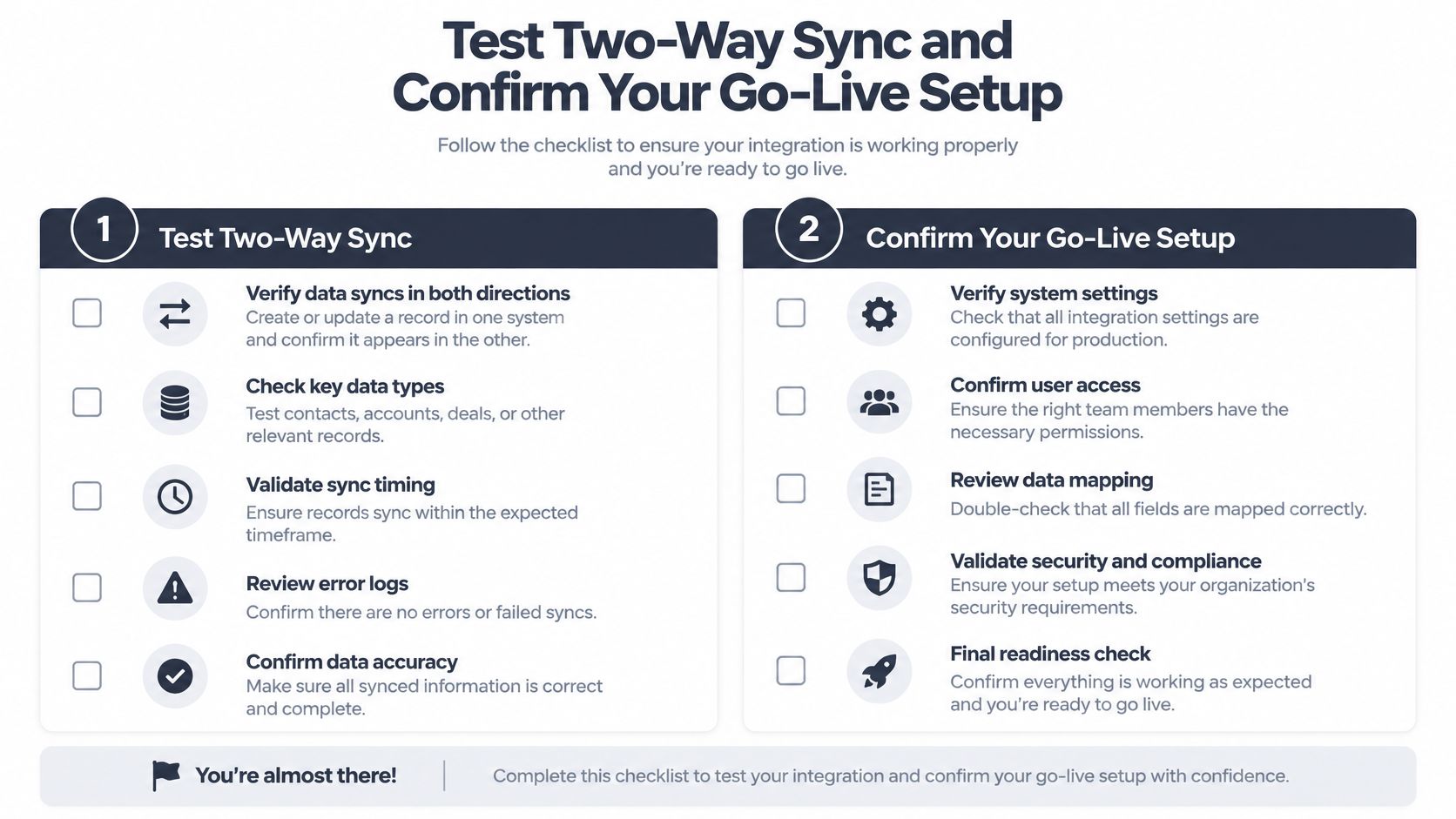
Don't approve the setup because an event appeared once. Approve it when the actions your receptionist, technicians, and customers depend on preserve the appointment's meaning.
Use a working test event for the initial lifecycle. After cancellation, create a fresh test invitation or series for the remaining checks.
Run the acceptance test in order
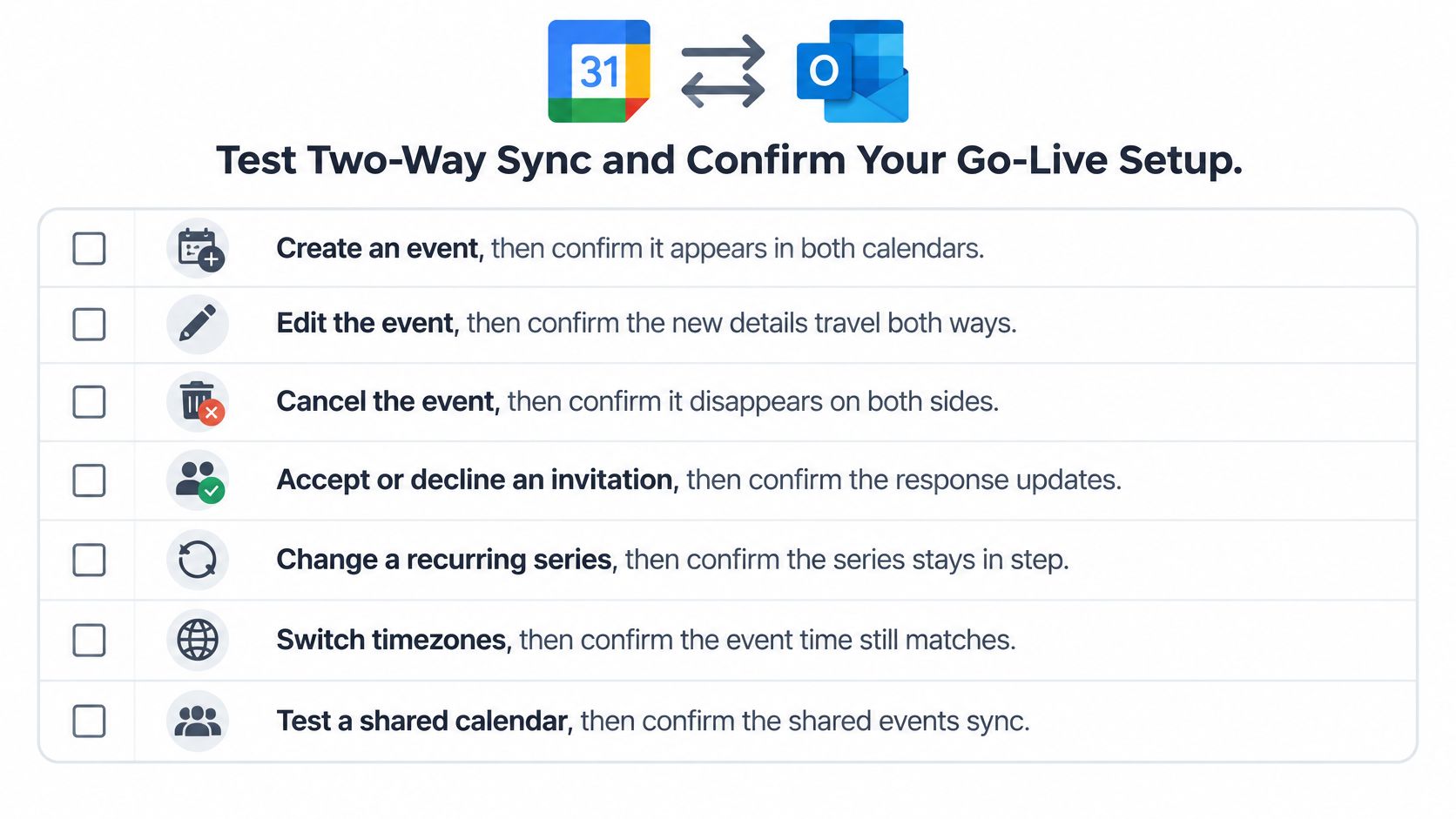
- Create an event. Start in Google, verify it in Outlook, then repeat from Outlook for a connection intended to support both directions.
- Edit the details. Move the appointment and change its title from the opposite interface. Confirm the original event updates instead of producing a new copy.
- Cancel the appointment. Check both calendars and any attendee notification so the slot isn't left blocked.
- Accept or decline an invitation. Confirm the response reaches the organizer and appears correctly in the other interface.
- Change a recurring series. Test both a single occurrence and the series, checking that exceptions remain attached to the right dates.
- Switch timezones. Confirm the same instant displays correctly in each location, then repeat across a daylight-saving transition.
- Test a shared calendar. Use the permissions of an ordinary staff member, not just the administrator's account.
Include awkward recurrence patterns: a series starting on a different day from its recurrence day, and a monthly series scheduled at the end of the month. Also inspect descriptions and attachments rather than assuming they survive unchanged.
Set a booking boundary before launch
GWSMO exposes invitee availability only 28 days into the past and 56 days into the future, and Outlook surfaces a maximum of 20 shared Google calendars, according to Google's calendar interoperability guidance. Keep near-term availability queries within that coverage; use explicit event reads for longer-range planning, and narrow the selected calendars for larger teams.
Record a pass or fail for event time, organizer, attendees, recurrence, cancellation state, and duplicate-free identity. Calculate the percentage of scenarios preserving all required fields, but don't let a strong overall result excuse a failed cancellation or a double booking.
For a custom connector, log provider responses, event versions or change tokens, source-calendar identifiers, and reconciliation timestamps. Retry temporary failures with exponential backoff, while making writes idempotent so a retry doesn't create another appointment.
Go live only when critical booking scenarios pass and one calendar is designated as the source of truth. The appointment booking calendar guide can help define appointment types, availability, and booking rules around that decision.
Once that's reliable, AI can complement the people answering calls. rednea connects to Google Calendar or Microsoft 365, reads real availability, and books estimates or service calls during the conversation. Routine booking can stay with the assistant while staff handle complex requests, urgent judgments, and high-value conversations.
Start with one appointment type and test the customer languages your business supports before expanding multilingual service. Run the checklist this week, including a staff handoff, so a missed call can become a booked slot without making the team trust an untested calendar.
Fix Missing, Duplicate and Stale Events
Sync symptoms, causes and fixes
| Symptom | Likely cause | Fix |
|---|---|---|
| Events missing in Outlook | Invitations not added automatically in Google Calendar | Turn on automatic adding of invitations, then send a test invite |
| Duplicate events appear | Two sync tools running on one account | Keep one sync authority and remove the other |
| Recent changes not showing | Subscription refresh delay or a static imported snapshot | Allow the subscription refresh window; replace a snapshot with a subscription or supported account sync |
| Recurring events shifted | First occurrence missed, or a monthly event set on the 31st | Recheck the series pattern in both apps and recreate it if needed |
| Times wrong after a clock change | Timezone mismatch between calendars | Set matching timezones and retest around the daylight-saving switch |
| Calendars not syncing at all | Email-only connection using IMAP or POP | Reconnect with calendar-capable authentication |
Choose one synchronization authority
Use GWSMO, Microsoft Cloud account sync in a supported New Outlook client, or an API-based middleware layer as the authority for the intended workflow. Don't stack overlapping tools against the same account in an attempt to make updates arrive faster.
Google's Outlook synchronization documentation warns about duplicate events and data corruption from overlapping tools, and documents recurrence problems including missing first occurrences and monthly events on the 31st appearing on the last day of shorter months. Check the underlying series before manually moving individual occurrences, or you'll create exceptions that obscure the original problem.
An email-only connection is a different failure. IMAP and POP carry mail, not calendar objects, so a working inbox doesn't prove the account can synchronize appointments.
Separate configuration fixes from waiting
Turning on invitation handling or correcting timezone settings can be a quick configuration change. A subscribed feed still needs its scheduled refresh, and a static import won't become current merely because you wait longer.
Recovery rule: Fix the connection before cleaning up event copies. Otherwise, an active duplicate-writing process can recreate the entries you just removed.
For API-based booking, retain the provider event ID and an idempotency key. Reconcile an existing event after a repeated notification instead of treating every retry as a request for another booking.
Don't promise full feature parity after the calendar starts moving again. Attachments, HTML descriptions, attendee visibility, guest permissions, and availability behavior can differ between interfaces; keep essential appointment instructions in fields you've tested.
If recovery fails, remove the duplicate connection, reconnect using calendar-capable authentication, and repeat the lifecycle checklist on a clean test event before reopening automated booking. When reviewing a scheduling app for a small business, prioritize reliable cancellation, clear ownership, and correct availability over the number of calendars it can display.
---
rednea helps your team answer routine customer questions and book appointments into Google Calendar or Microsoft 365 during the call, while people handle the conversations that need judgment. Visit rednea to set up a booking workflow around your tested calendar, appointment durations, and buffer times.
Try rednea, no strings attached
AI phone assistant for business. Hear a live demo in your browser, book a call with our team, or get started — from £90/month, cancel monthly, no minimum term.
GDPR-compliant · EU & UK GDPR · Multilingual