Appointment Booking Calendar Setup: A Practical Guide

You're on a job, up a ladder, or mid appointment when the phone rings. You can't answer, the caller doesn't leave a message, and by the time you call back they've booked someone else. Meanwhile, your diary lives in three places, a paper book, a phone calendar, and someone's memory, so nobody's quite sure which slots are free.
That's the problem an appointment booking calendar fixes when you set it up right. One calendar holds the truth, every channel writes to it, and an AI phone assistant books into it while you're working. You don't need a big system to start. You need the right order of setup, tested properly.
Pick the Calendar Your Bookings Will Live In
A customer books online while a staff member takes a booking by phone. If those appointments go into separate calendars, the same slot can be promised twice. Set one master calendar as the source of truth for phone, web, and staff bookings.
The independent 2023 Eliciting Insights consumer scheduling survey of 384 U.S. healthcare consumers found 95% had either booked a medical appointment online or would do so if the option were available. Across all business categories, respondents reported scheduling approximately 60% of appointments online, compared with 33% by telephone, according to the same consumer scheduling survey.
Keep the phone route open alongside online booking. In a 2025 Healthwatch Surrey study, 63% of respondents usually booked GP appointments online, while 47% preferred online booking and 58% preferred the telephone. Both routes should feed the same calendar.
Calendar Options Compared for a Phone Assistant
| Calendar option | Best fit | Phone-assistant sync |
|---|---|---|
| Google Calendar | Solo traders and small teams already using Gmail | Connect the Google account that holds working availability |
| Microsoft 365 | Businesses using Outlook and shared work calendars | Connect the Microsoft 365 calendar used for bookings |
| Industry scheduling software | Practices with their own booking rules or intake processes | Check that the software supports an integration |
| Dedicated booking tool linked to a calendar | Businesses wanting public booking pages alongside an existing calendar | Confirm that bookings update the master calendar |
Choose the calendar your team will keep current, then decide who owns it, who can access it, and which time zone it uses. Ownership matters if a staff member leaves; access matters when several people manage bookings. A personal calendar mixed with work appointments can also make available times appear busy.
For help weighing the options, see this guide to scheduling apps for small businesses. Start with a calendar the team already checks. Add booking software when you need features such as intake forms, deposits, or more detailed scheduling rules.
How to Connect Your Calendar to the Phone Assistant
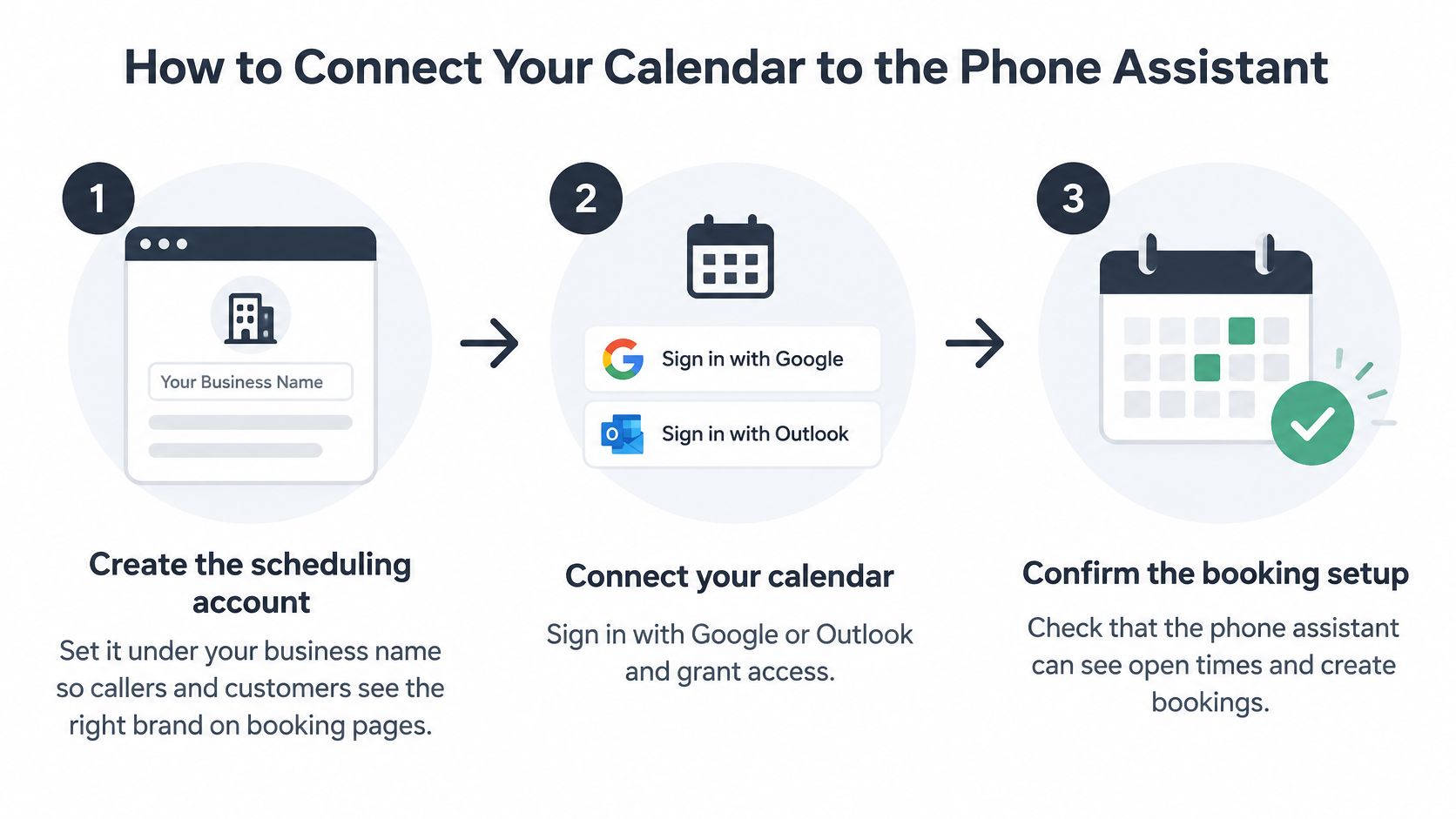
A useful test is simple: the phone assistant should book only times your calendar can accommodate. Set up the connection in order, then check the booking flow before callers rely on it.
The Seven Setup Steps
- Create a Cal.com account. Set up the account you will use to connect your calendar and configure appointment types.
- Connect your working calendar. Link Google Calendar or Outlook, and choose the calendar that reflects your actual availability. Cal.com needs access to the calendar you use for work bookings.
- Set up an appointment type for each job or visit. Specify the duration and buffer time for each type. For example, a boiler service might take 60 minutes, with a 30-minute travel buffer. Bookings respect those settings, so the assistant offers slots that fit the job.
- Add the generated API key to rednea. Copy the key from your Cal.com account into rednea. If the assistant offers no slots, first check that the key came from the account connected to your working calendar.
- Set bookable hours and time zone. Make sure the hours and time zone in Cal.com match your intended schedule. A mismatch can put an appointment at the wrong local time.
- Enable phone-only booking if callers do not need to provide email. With one setting in Cal.com, a phone number is enough to book an appointment. This can make booking simpler for callers who would otherwise need to spell out an email address.
- Place a test call and book a slot. Check that the appointment appears in the calendar with the correct title, duration and caller details.
Practical rule: Confirm the test appointment appears in the calendar and matches the details you expect.
Then test a time that is already busy. The assistant should offer an available alternative rather than booking over it. Together, these checks confirm that the connection is set up to use your calendar availability and appointment rules.
Keep Availability in Sync Across Every Channel
The assistant offers Tuesday at ten, but a staff member booked that slot at the desk an hour ago. That usually means one booking route is not checking the latest calendar availability, or two routes are writing the same appointment twice.
Phone, website and staff bookings need to update the same calendar record. Check that each route reads current availability before offering a slot, then writes the confirmed booking back to the calendar. For the phone route, rednea's Google Calendar integration connects to live availability and books appointments during the call.
Booking Sync Symptoms, Causes and Fixes
| Symptom | Likely cause | Fix |
|---|---|---|
| Assistant offers a slot already taken | Calendar connection is inactive or availability is out of date | Check the connection, then test whether the assistant rejects a busy slot |
| Booking lands an hour early or late | Daylight-saving change is not reflected consistently | Test a booking around the clock change |
| Old hours or greeting still heard | The change has not taken effect yet | Changes apply from the next call; confirm with a test call |
| Same appointment appears twice | Two booking routes created separate entries | Check the booking records and make sure each appointment type uses one booking route |
| Booking missing from the calendar | API key expired or belongs to the wrong account | Generate a new key in the correct account and add it to the assistant |
Keep an audit trail for calendar edits. It helps identify who moved an appointment and when, especially when staff also make changes by hand. If an issue appears, test the affected route against the table before changing other settings. That makes it easier to isolate a sync fault without disrupting working booking routes.
Set Reminder Timing That Cuts No-Shows
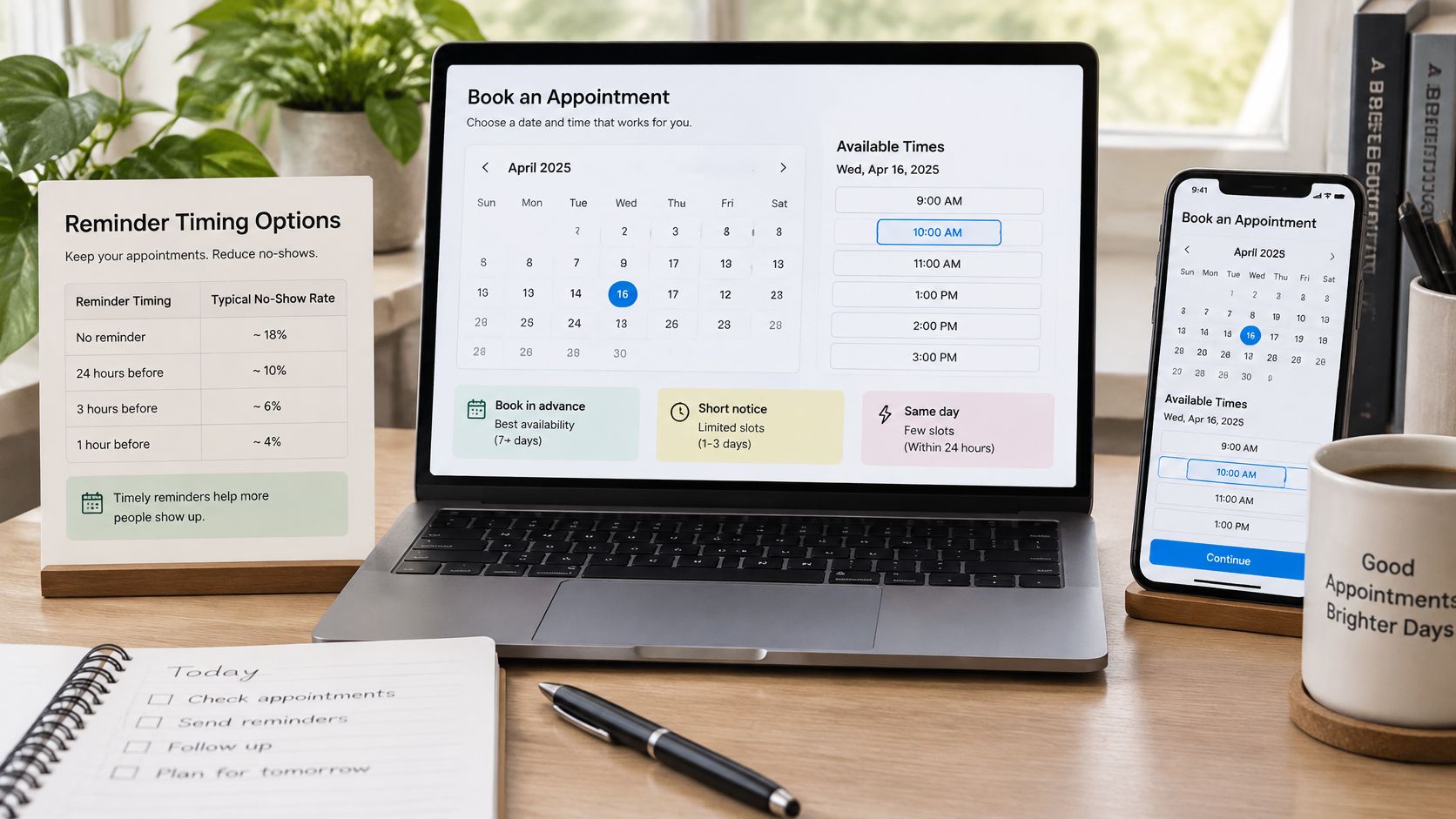
A filled diary isn't the same as customers turning up. Let the lead time between booking and appointment decide how many reminders go out, and give every reminder a way to cancel or reschedule. A customer who can move a slot in one reply is far less likely to not show, and you get the released slot back in time to offer it to someone else.
Reminder Schedule by Booking Lead Time
| Lead time | Messages | Purpose |
|---|---|---|
| Same day | Instant confirmation only | Confirm details while the caller is still on the line |
| 2 to 7 days | Confirmation plus a reminder 24 hours before | Give the customer time to cancel or move the slot |
| More than 7 days | Confirmation, then reminders at 7 days, 24 hours and 2 hours before | Catch changes before travel or staff time is committed |
Reminders work, but they're not magic. In a randomized outpatient study reported in The American Journal of Medicine00108-7/fulltext), no-show rates were 13.6% with staff reminders, 17.3% with automated reminders, and 23.1% with no reminder. Automated reminders cut no-shows, but human outreach did better, so don't assume automation performs identically for every customer.
Send most reminders by text, since customers read them quickly and can reply to move a booking. Our guide to sending a text message to confirm appointment details cover wording that gets a reply. Reserve a voice call for customers who miss most often, such as those who booked at short notice or who have missed before.
Only contact customers who have agreed to be contacted, and stop sending once they reply. Record confirmation, cancellation, rescheduling, and delivery failures as separate events, because a delivered reminder doesn't prove the customer understood the time or will attend.
Measure your no-show rate as missed appointments divided by eligible scheduled appointments, excluding cancellations made before the attendance window. Review it monthly. If the rate isn't falling, the problem is usually timing, not frequency, so move the reminder earlier before you add more of them.
Hand Off to a Person at the Right Moments
A caller reporting a safety issue needs a different route from someone asking to book routine work. Set the assistant's scope around the calls it can resolve, and define clear handoff triggers for everything that needs a person's judgment.
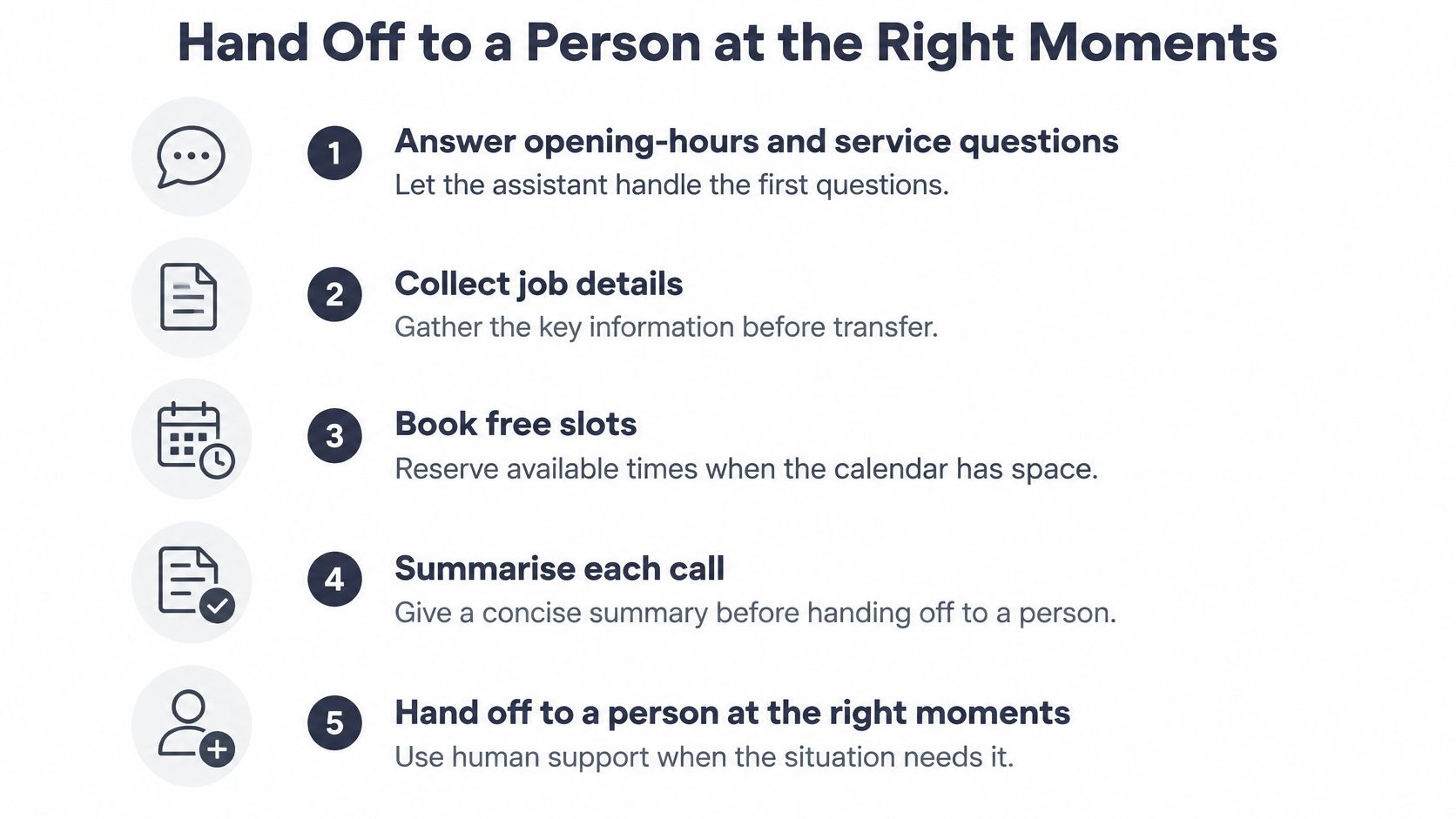
The assistant can answer routine questions, collect job details, book available appointments, and send a structured call summary by email. When the right person is unavailable, it can record a callback request unless it can handle the inquiry itself. The handoff should tell the caller what happens next and give the responsible person enough information to follow up.
Handoff Checklist for the Assistant
| Trigger | What the assistant says | Who acts |
|---|---|---|
| Emergency on the business's defined list | Follow the business's instructions and mark the call urgent | On-call team member |
| Complaint | Take the caller's details and explain when a callback is expected | Owner or office manager |
| Disputed charge | Record the concern and route it without discussing amounts | Billing owner |
| Complex estimate | Offer a site visit or callback rather than quoting | Estimator |
| Sensitive personal information | Stop collecting details and transfer the call | Named data lead |
| Answer it cannot verify | Offer to arrange a callback rather than guess | Front-desk staff |
Keep each trigger specific: “a leak near electrical wiring” gives clearer instructions than “urgent plumbing problem.” For emergency handling, use the business's own defined list. Calls outside that list can be booked or logged as requests.
Write the triggers in the business's own words, then assign one person to each. For practical guidance on defining routes and callback expectations, see how to set up escalation call handling. A trigger without an owner leaves the caller waiting for someone to notice the message.
Test Every Route and Language Before Go-Live
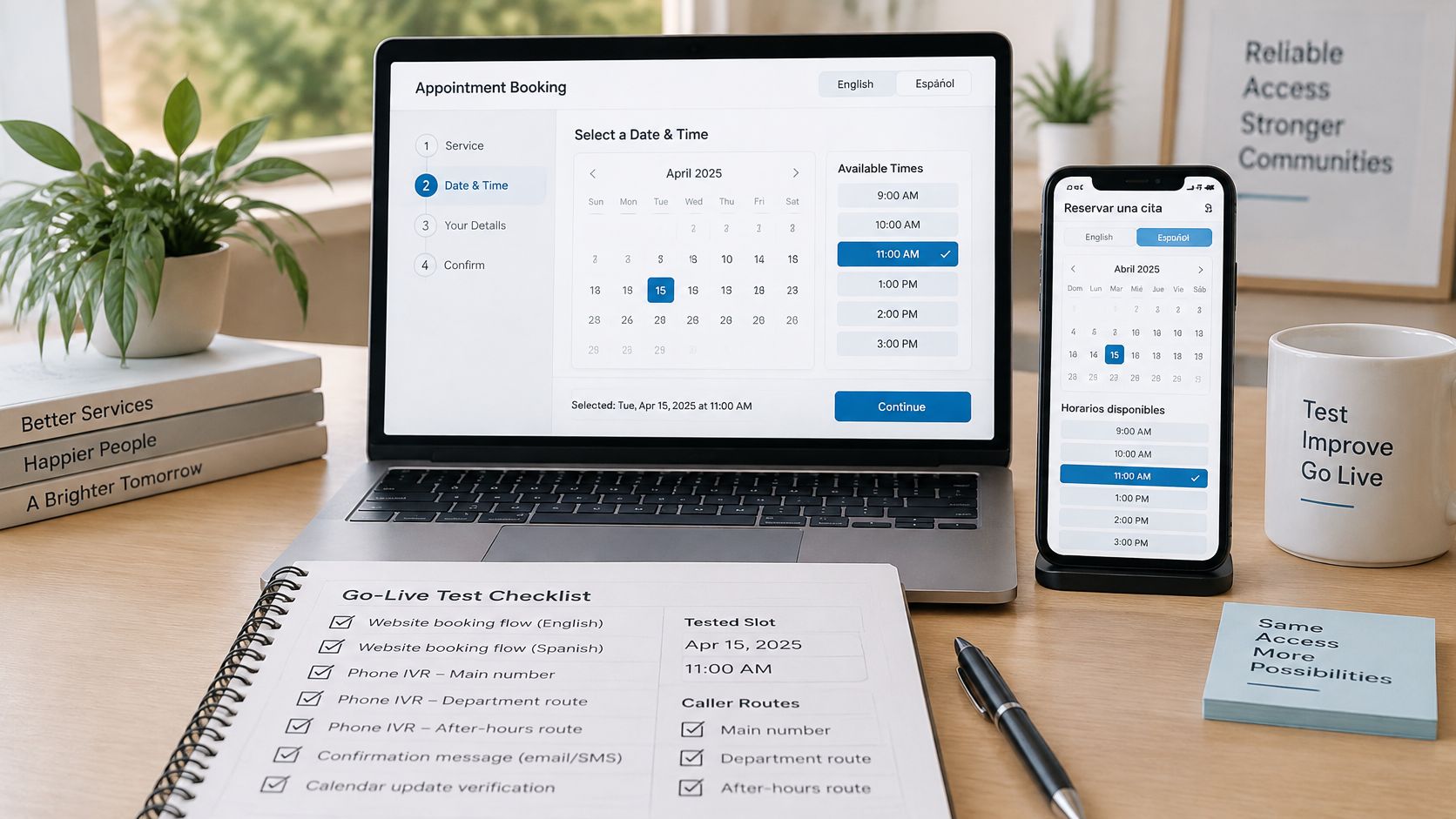
A caller books the right service in English, but the same request in Spanish gets routed incorrectly. Catch that kind of failure before launch by testing each route and language your business serves, then checking what reaches the master calendar and your team.
The Pre-Launch Test Run
Use the booking and test-call steps from the earlier setup, then check these less obvious failure points:
- Run separate calls in each language you serve. Use realistic wording for each language, including how callers describe the same service differently. Confirm language handling works and note any case where the assistant asks for clarification.
- Test names, street names, and postcodes. Use difficult local names, not only easy examples. Check that the details are captured accurately in the booking and call summary.
- Check cancellation and rescheduling paths. Confirm a cancelled appointment releases its slot in the master calendar and that a rescheduled booking appears at the new time. This matters when phone, web, and staff bookings share availability.
- Read the email summary after each call. Check that it includes who called, what they wanted, and what was booked or promised. Missing details make follow-up harder.
- Change a test event in the calendar, then call again. The assistant should reflect the updated availability rather than offer a slot that is no longer free.
Keep the assistant's answers tied to the services, price ranges, areas, and hours you have configured. It should not improvise a price or promise work outside your service area. Keep phone and web bookings connected to the same source-of-truth calendar so one channel cannot claim a slot already taken through another.
What Good Looks Like in the First Two Weeks
Start with routine, low-risk requests. Track booking completion, transfers, corrections, and the reasons callers need a person. Review the records regularly and adjust the assistant's instructions when the same problem recurs.
Start narrow: Booking, rescheduling, cancellation, directions, price ranges, availability, and status updates. Add more only when those run cleanly.
Set clear handoff rules for emergencies, disputed charges, requests for diagnosis or legal judgment, and information the assistant cannot verify. Those calls should reach a person; the test records should make it clear whether they did.
The Basic plan includes 24/7 answering, appointment booking with calendar integration, email notifications, web chat for your website, a choice of 10+ voices, and no setup fee. Use the first two weeks to find gaps in the configured routes and answers, then add responsibilities one at a time.
---
If missed calls are costing you bookings, rednea answers around the clock, books directly into your calendar, and transfers calls you have designated for a person. Setup is handled for you, so you can test the booking flow before launch.
Try rednea, no strings attached
AI phone assistant for business. Hear a live demo in your browser, book a call with our team, or get started — from £90/month, cancel monthly, no minimum term.
GDPR-compliant · EU & UK GDPR · Multilingual