Calendar Sync Settings: How to Connect and Fix Them

Your phone shows Thursday afternoon as free. A client books a visit, then you open the work calendar and find a van repair already blocking the same time. Now someone has to call the client back. Calendar sync settings decide which commitments your booking tool sees, where it saves appointments, and whether it can safely offer that slot.
Calendar Sync Settings at a Glance
For a plumber taking bookings between jobs, a connected calendar isn't enough. The booking tool must read the right diary, respect service hours, and leave room to get from one address to another.
Separate the settings into what's connected, what's shared, and what blocks availability. A calendar can appear on your phone without being checked for conflicts. Equally, a booking tool can display events without having permission to save an appointment.
Calendar sync settings and recommended starting values
| Setting | What it controls | Starting value |
|---|---|---|
| Calendars checked for conflicts | Which calendars count as busy time | Work calendar only |
| Event detail visibility | Whether titles and notes reach the booking tool | Busy status only for shared calendars |
| Working hours | When bookings can be offered | Real service hours |
| Buffer time | Gap before and after each appointment | 15 minutes for travel |
| Appointment duration | Length of each slot offered | Matched to real job lengths |
| Time zone | Zone used for availability and reminders | Business location as a named zone |
| Recurring events | Whether repeating blocks remove slots | Expand every occurrence |
| Reminder sync | Whether alerts follow the booking | Off for shared calendars |
Treat the travel buffer as a starting example, not a promise that every journey fits. Increase it for a wider service area, and don't use short appointment durations to make the diary look more available.
Starting with the work calendar keeps the setup understandable. If a personal commitment makes you unavailable, deliberately add its busy status or create a private block in the work diary.
For workflows beyond basic booking, CodeWords' guide to calendar automation without a developer is a useful resource for exploring connected calendar actions.
Before connecting: Write down the starting values and who owns each decision. Authorization should confirm your booking rules, not decide them for you.
Choosing Sync Mode and Access Level
A calendar connection has two separate questions: what the assistant may see and what it may write. Read access lets it check existing commitments. Write access lets it create the appointment. Treat those as distinct controls, because broad access may make authorization quicker while increasing the damage if the wrong calendar becomes the destination.
Sync modes compared by what they read and write
| Sync mode | Reads events | Writes bookings | Best for |
|---|---|---|---|
| One-way import | Yes | No | Viewing a shared calendar on a phone |
| Two-way sync | Yes | Yes | Teams where every booking must reach every schedule |
| Busy-only access | Free and busy status only | No | Staff or clients who must not see titles |
| Write-back to one calendar | Yes | Yes, to one calendar only | Solo operators with one authoritative diary |
These options can overlap. Busy-only describes how much detail is exposed. Two-way describes the direction of changes. Check both settings before assuming a connection behaves safely.
Give each calendar a defined role
For a business where one person handles every job, keep one authoritative diary and write bookings back to it. rednea connects to Google Calendar or Microsoft 365, reads real availability, and books estimates or service calls during the conversation. Bookings respect job durations and buffer times, and the assistant books only free slots in the business calendar.
For a dental practice, patient appointments, staff holidays, and personal events may sit across Google and Microsoft accounts. Give the practice booking calendar write access. Keep supporting calendars read-only or busy-only where supported. A clinician can be unavailable without patient titles or notes being exposed to the booking tool.
If booking data needs to reach customer records, map the fields deliberately using this guide to CRM integration services. rednea integrates with existing systems such as calendars, CRMs and automation tools, but a scheduling integration does not need every detail held in a customer record. Custom calendar and tool integrations are available as an add-on for an extra fee on the Professional and Scale plans.
Before changing modes or migrating accounts:
- Record access: List each calendar, its owner, its read permissions, and its write destination.
- Remove stale connections: Revoke access for former staff and unused integrations.
- Test each change: Complete a booking before changing the next connection.
More permissions create more places to inspect when appointments duplicate or private information appears where it should not. If you need a calendar to block time but never receive bookings, give it the narrowest read role available.
How to Connect Your Calendar Step by Step
Set up the connection before enabling automatic phone bookings. Keep the public booking page closed until the destination, availability rules, and cancellation behavior have been checked. A calendar connection is a booking-safety decision. It controls what the system can see, what it can write, and what it can guarantee.
The connection starts with ownership and authorization.
Establish the account and destination
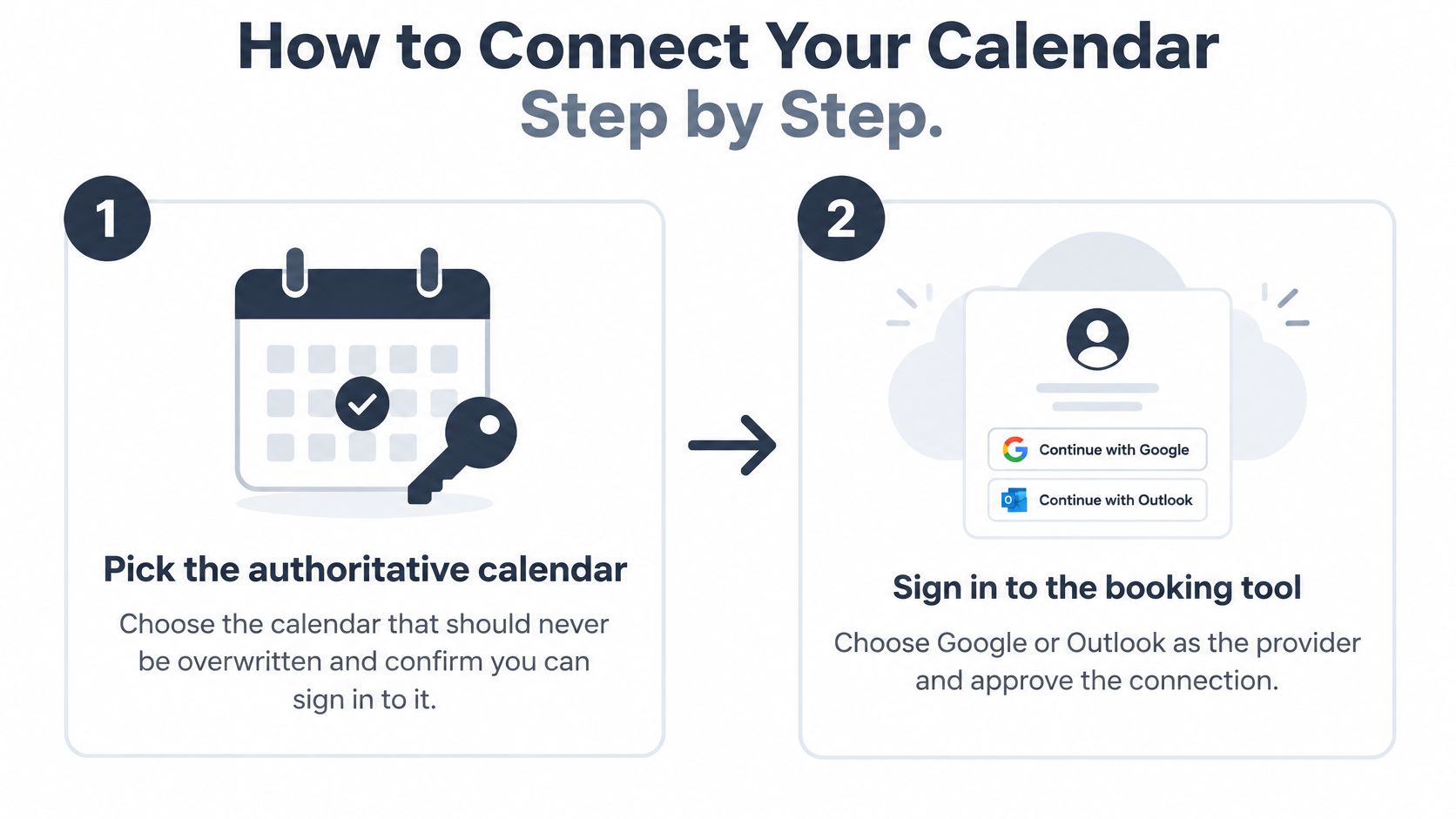
- Pick the authoritative calendar. Choose the diary whose existing commitments must be preserved, and confirm you can sign in to the owning account. Check that it belongs to the business rather than an employee's personal login. This is the calendar that should receive bookings, because it is the one the business works from.
- Authorize the booking tool. For our setup, create a Cal.com account, connect Google or Outlook, and approve the access level you've chosen. For an organization-managed account, work through the relevant administrator permissions. The Microsoft 365 integration guide provides useful context.
- Select calendars deliberately. Choose the authoritative booking destination and any supporting busy-only calendars. Leave personal calendars unticked unless their commitments should block work, because an unintended selection can make otherwise available time disappear. Busy-only sources are useful for conflict checking, but they should not become extra booking destinations.
Do not substitute an exported calendar file for a continuing connection. A guide to one-time calendar export on macOS is useful when you need a snapshot, but an exported copy won't maintain a live booking workflow. It cannot show later changes or protect a live booking path.
Configure appointments and prove the connection
- Create appointment types around actual work. For example, configure a boiler service as a 60-minute appointment with 15 minutes afterward for travel or paperwork. Set service hours separately from the hours when someone can answer the phone. The appointment type should reflect job durations and buffer times, so the assistant books only free slots and avoids forcing work into gaps that are too small.
- Connect the phone assistant securely. Generate the API key in Cal.com's settings and add it to the phone assistant's integration settings after setting up the appointment types. Treat the key as a credential: don't paste it into shared notes, customer messages, or screenshots. Providers receive appointment data only because the customer configured them.
- Test both directions. Create a test event in the connected calendar and a test booking in the booking tool. After the configured sync cycle, confirm that the source event removes availability and the booking reaches the intended destination. Check the saved booking itself, including its calendar, duration, address, and local start time. Authorization proves access was granted, while the saved booking shows whether the workflow wrote the right record.
Finish with a clean result: the test booking appears in the right calendar and nowhere unintended. Remove test records at their source so you can also observe whether the connected view clears them correctly. Only then should automatic phone bookings be treated as dependable.
Time Zone and Recurring Event Settings
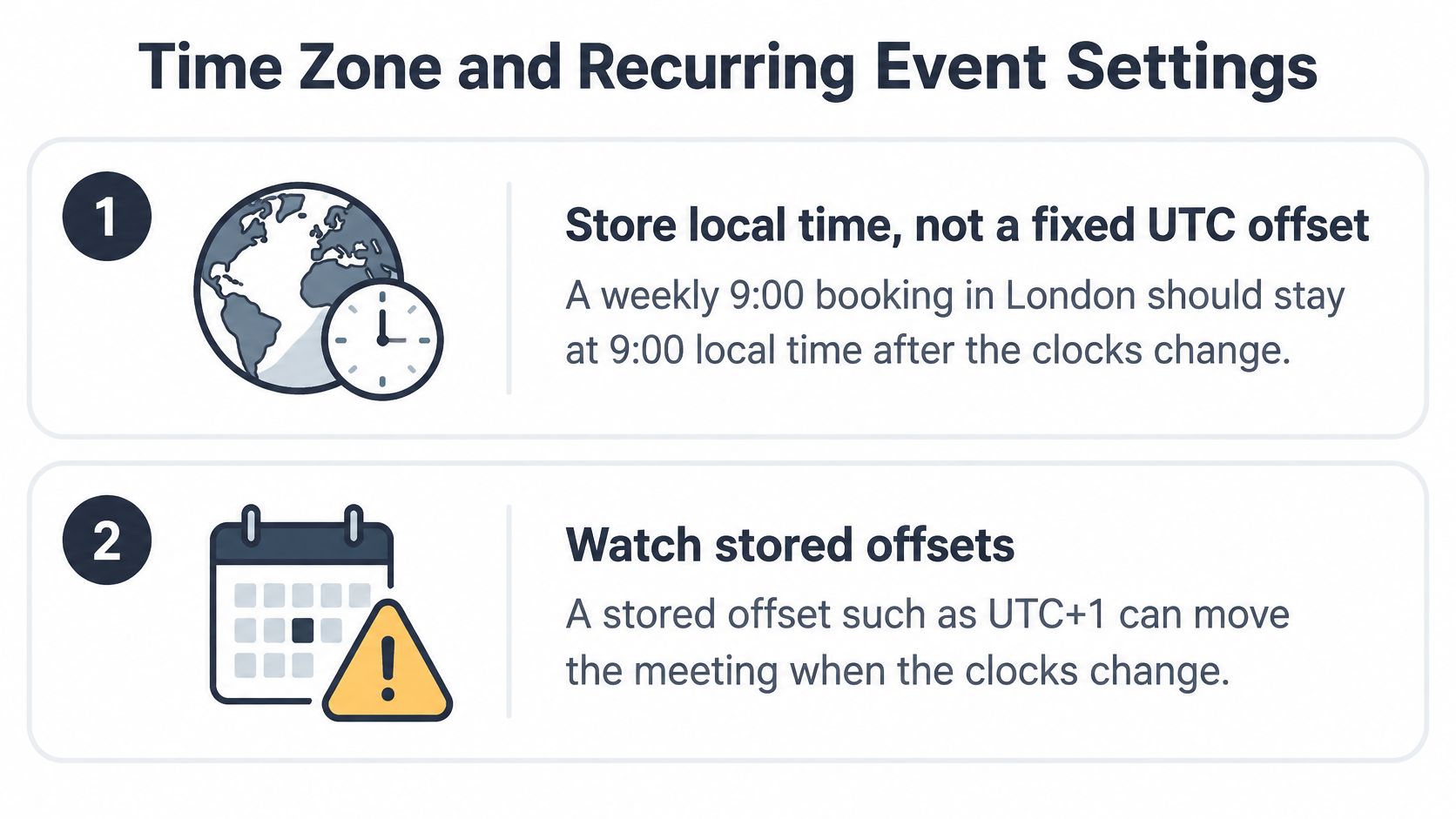
A meeting's local time isn't a fixed UTC offset. A weekly booking at 9:00 in London should remain at 9:00 local time after the clocks change; saving only UTC+1 doesn't describe the rules needed to preserve that intention.
Use a named zone, such as Europe/London. The iCalendar specification, RFC 5545, requires a VTIMEZONE component for each TZID used in an iCalendar object and recommends local time with a zone reference for recurring start times.
Test the dates that expose mistakes
Run a small test calendar before letting recurring blocks control customer availability:
- Spring change: Create a weekly event spanning the spring clock change and check its local start time in both calendars.
- Autumn change: Repeat the test across the autumn change, including the booking page's offered slots.
- All-day event: Confirm that a closed day remains attached to the intended date.
- Floating local time: Check how an event without a time-zone reference is interpreted.
- Edited occurrence: Move a single appointment within a recurring series and verify that the original occurrence no longer blocks availability.
Inspect the calendar view and the customer-facing availability page. An event can look correct to staff while the booking tool expands its recurrence incorrectly.
Preserve the recurrence, not just the timestamp
For a custom connector, store UTC instants for comparisons while retaining the original local start, end, and named zone. Don't expand the series in UTC first and apply the local zone afterward.
Other failure points include assuming every date contains the same number of hours and dropping exception dates when a series changes. A moved occurrence needs both the replacement appointment and the exclusion of its original position.
Calculate availability in the business's zone, save the final event with an explicit zone, and read it back from the provider. Compare both the returned instant and the intended local clock time before accepting the booking.
Common Sync Problems and How to Fix Them
If a booked slot still looks free, pause automatic bookings for that appointment type first. Then establish whether the event was saved, saved elsewhere, or never written. Until you know which one happened, your calendar is showing availability it cannot guarantee, and every slot the assistant offers is at risk of double booking.
Start with permissions, then check the time zone, then recurrence handling. Permission failures can leave the calendar looking connected while preventing the action you need.
Sync symptoms, likely causes and fixes
| Symptom | Likely cause | Fix |
|---|---|---|
| Booked slot still looks free in one calendar | Write-back not enabled | Turn on write access for the booking calendar |
| Appointments show one hour early or late | Numeric offset instead of named zone | Set the account to a named zone such as Europe/London |
| Repeating meeting blocks the wrong days | Single occurrence edit not synced | Re-save the series and check its exceptions |
| Deleted event still blocks a slot | Deletion not processed | Delete at source, wait one sync cycle, then force a resync |
| Sync stops after a password change | Access token revoked | Reconnect the account and reselect calendars |
| Duplicate appointments appear | Two-way sync plus manual entry | Keep one authoritative calendar and stop manual copies |
Retest without creating more copies
Change one setting at a time, allow a complete configured sync cycle, and inspect the source calendar before retrying. Don't repeatedly submit the same booking because the screen hasn't refreshed. Each retry can append another copy of the same appointment, and now you have two problems instead of one.
If the problem persists through another cycle, reconnect the account, reselect the calendars, and repeat the controlled booking test. Record the appointment identifier and timestamps so support can trace the same event rather than compare similar-looking copies.
For custom connectors, Microsoft Graph's event delta-query documentation separates the initial full synchronization from incremental retrieval of additions, modifications, and deletions. A connector must process those changes against stable event identities rather than append everything as a new appointment.
A successful API response means the request was accepted. It does not confirm what the diary now contains. Check that the intended event exists, old versions are gone, and canceled time is available again.
This last check is where booking safety is decided. What the calendar shows, what it writes, and what it guarantees are three different things, and only a direct read-back verifies all three. If reconnecting fixes the symptom but it returns, investigate the connector's handling of expired access, recurrence exceptions, and deletion records. Repeated manual cleanup isn't a sustainable operating procedure.
When AI Books and When a Person Takes Over
A caller ringing an electrician after hours may only need a routine inspection slot. AI can check availability, take the address and confirm the appointment without interrupting someone finishing a job. Treat that convenience as a booking-safety decision. A calendar can show free time and accept a written appointment, but neither fact proves that every caller should be handled automatically.
An immediate answer keeps intake moving, yet speed does not settle the safety question. The assistant should identify itself as automated rather than imitate a person.
Write down the handoff rules before launch:
- Understanding or trust breaks down: Transfer repeated misunderstandings, complaints, cancellation threats and explicit requests for a person.
- Judgment is required: Escalate vulnerable customers, payment disputes and sensitive circumstances.
- Urgency changes the job: Route a burning smell from a consumer unit directly to the on-call person rather than offering routine availability.
Set limits according to what the calendar can guarantee. The assistant can respect configured job durations and buffer times and write only into free slots. It cannot judge whether a distressed caller needs extra care, whether a dispute involves money owed, or whether urgent symptoms make a routine slot inappropriate. Those decisions belong to staff.
Some callers will still prefer a person. Keep that route visible in every supported caller language, and make sure names, addresses and appointment confirmations are handled accurately in each language.
Use a clear call booking customer service workflow: pass the caller's name, job, offered slot and transfer reason to the employee. Review resolved calls, transfers by trigger and missed calls weekly. Start with routine intake and booking, then expand automation only where the results justify it.
Confirm Your Sync Before You Rely On It
Set a clear acceptance gate for your appointment booking calendar workflow: availability must display correctly, booking changes must reach the relevant calendars, and confirmations must show the correct local time.
Reserve each slot atomically before confirming it. The calendar system-design explanation explains why simultaneous booking attempts require a reservation or serialization mechanism. For high-value appointments, make that protection part of the booking process.
Run these checks before accepting automatic confirmations:
- Change and cancel: Move a test appointment and cancel another. Verify that every relevant calendar reflects both changes.
- Inspect a busy day: Compare accepted bookings with the diary after a busy morning. Investigate overlaps before accepting further automatic bookings.
- Confirm local time: Compare the customer's confirmation with the appointment's local start time.
Go live only when every check passes. Otherwise, keep appointment requests subject to staff confirmation.
---
Visit rednea to set up an AI phone assistant that answers routine questions, books appointments using your calendar's availability, and escalates important calls. Bring your service hours, job durations, travel buffers, and emergency routing rules so the booking setup reflects how your business operates.
Try rednea, no strings attached
AI phone assistant for business. Hear a live demo in your browser, book a call with our team, or get started — from £90/month, cancel monthly, no minimum term.
GDPR-compliant · EU & UK GDPR · Multilingual