Set up the knowledge library: add documents and activate them for calls
Last updated 20 November 2026
In the Knowledge Library you store what your assistant should know about your business: price lists, frequently asked questions, menus, service descriptions or pages of your website. If a caller asks, for example, "How much does a furniture lift cost?", the assistant looks it up in your documents during the call and answers with your details.
This guide shows picture by picture how to add a document and activate it completely. The pictures come from a sample account (a fictional removals company). In your account you see your own business name.
In short: A document works in a call only when three things are true: 1. It is created and shows the status Ready. 2. It is published (button Publish draft). 3. It is assigned to your assistant (button Manage assignments). If one of these steps is missing, your assistant does not know the document in the call. Finally, check with a test call.
What you need
- A login for the dashboard at rednea.ai/login with the Owner or Admin role. With the Viewer role you cannot add or change documents.
- Your content, for example as PDF, Word file (DOCX), text file (TXT) or Markdown, up to 15 MB per file. You can also type text directly or take over pages of your website.
- About 10 minutes.
Step 1: Open the knowledge library
Sign in to the dashboard. In the left column, under Your assistant, click Knowledge. The Knowledge Library page opens.
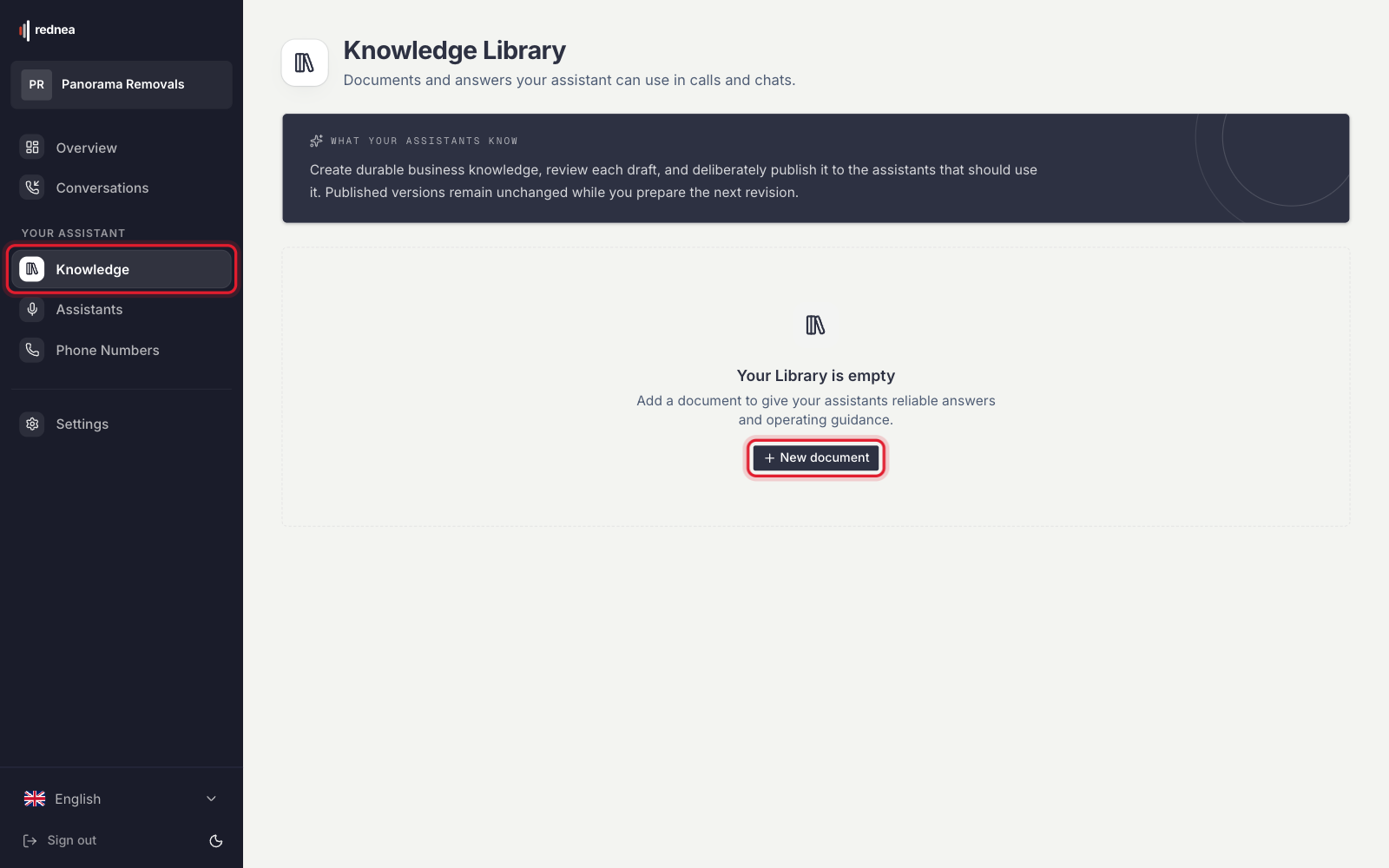
You do not see the «Knowledge» entry? rednea switches on the knowledge library per business. Write to us at info@rednea.ai. We switch it on for you. Then reload the page.
Step 2: Create a new document
Click New document. A window with three steps opens: Add content, Knowledge authority and Assistant use.
Under Content source, choose where the knowledge comes from. There are three options.
Option A: Upload a file
For price lists, menus, information sheets or your FAQ as a document.
- Click File.
- Drag the file into the field, or click into it and choose the file.
- The Title field fills with the file name. Change it if necessary, for example to "Price list 2026". The title helps you find the document again later.
- Click Continue.
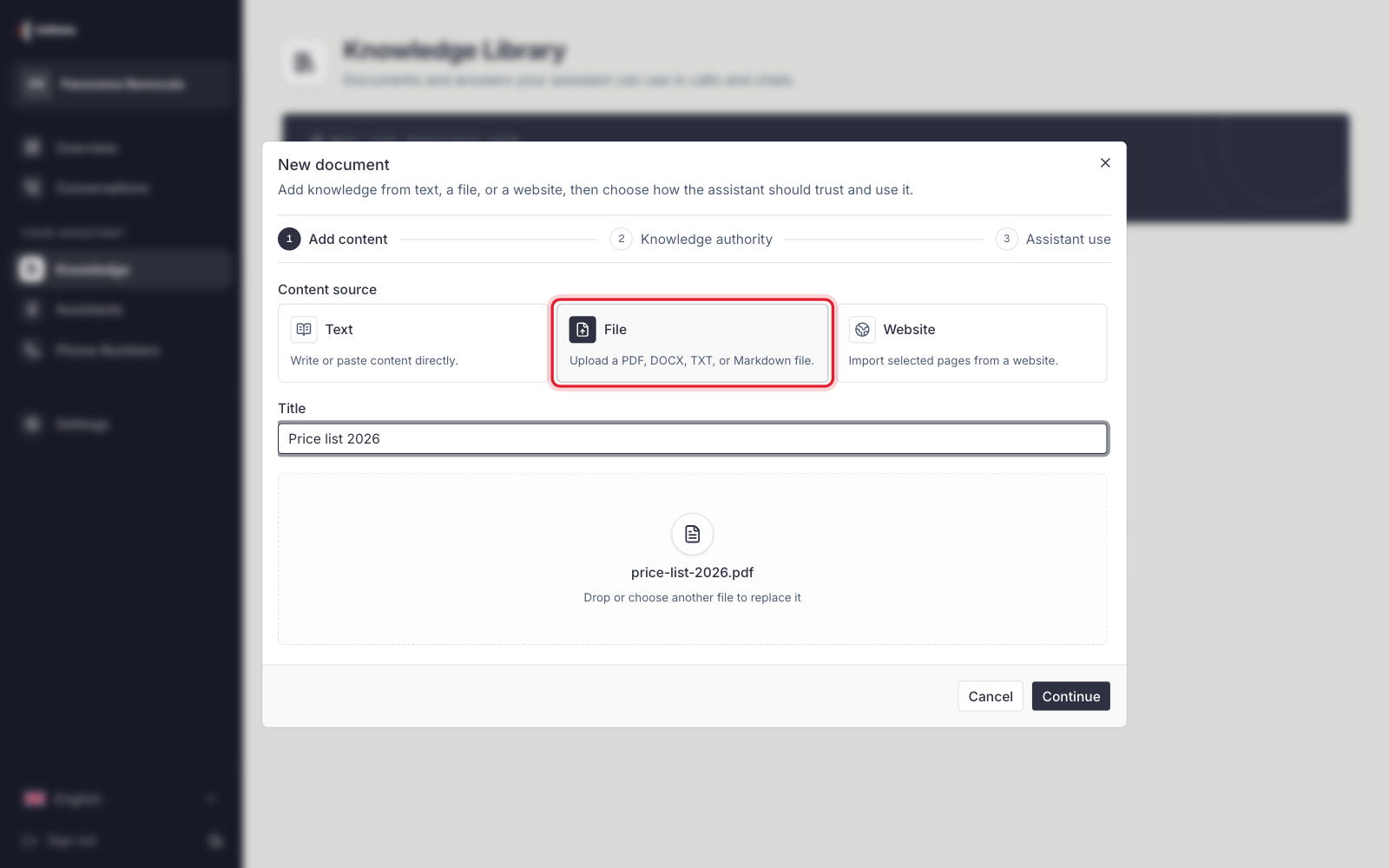
Good to know:
- PDF, DOCX, TXT and Markdown up to 15 MB are allowed. If your file is larger, save the PDF with a lower image quality or split it into several files.
- Files with real text work best, for example a PDF that you exported from Word. With scanned pages or photos, rednea must first recognise the text. Then check the result very carefully (see step 4).
Option B: Type the text directly
For short facts and frequent questions that you do not have as a file.
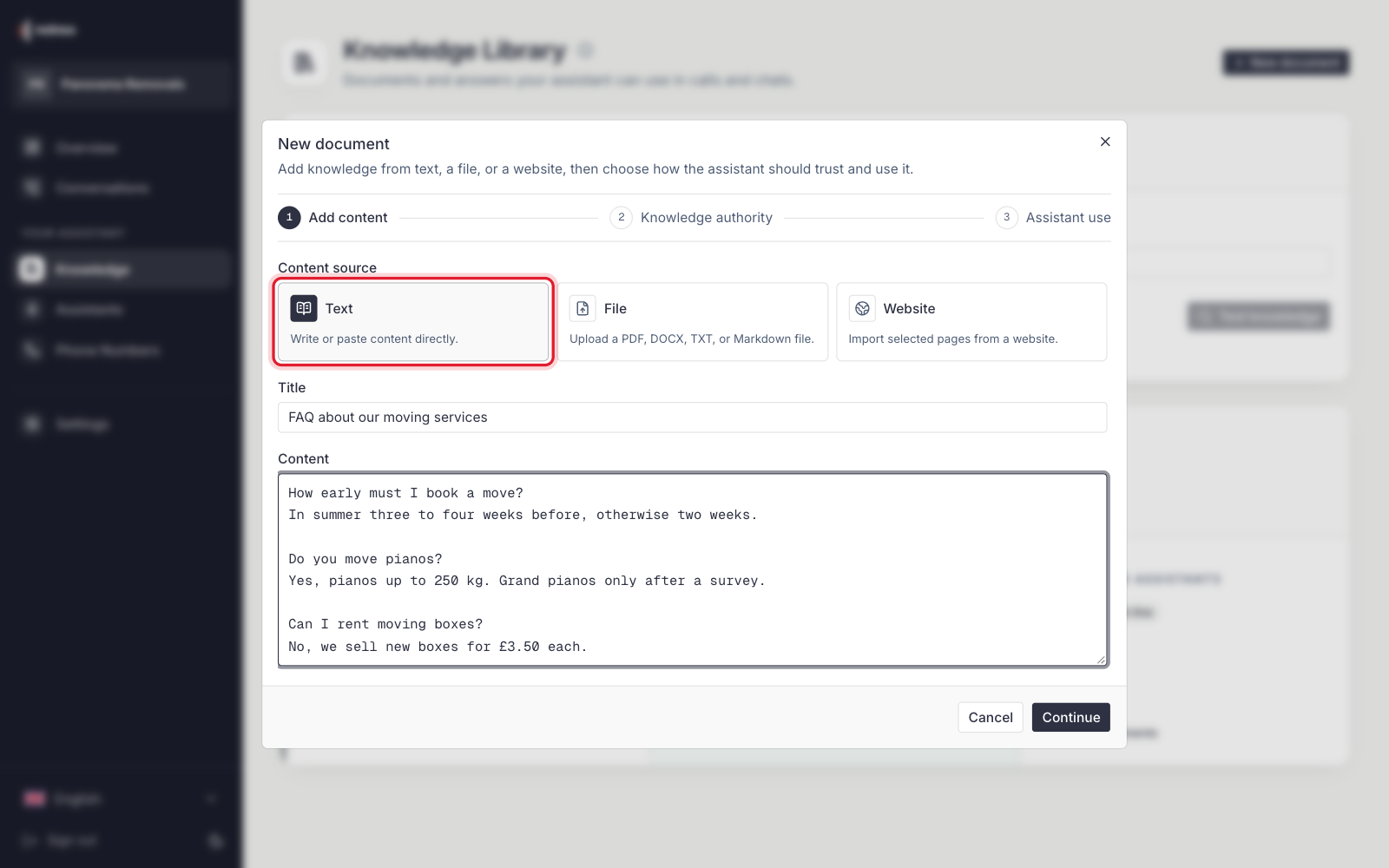
- Click Text.
- Enter a Title, for example "Moving services FAQ".
- Write or copy the content into the Content field. Question and answer work best, with an empty line between each pair.
- Click Continue.
Option C: Take over pages of your website
For content that is already on your website.
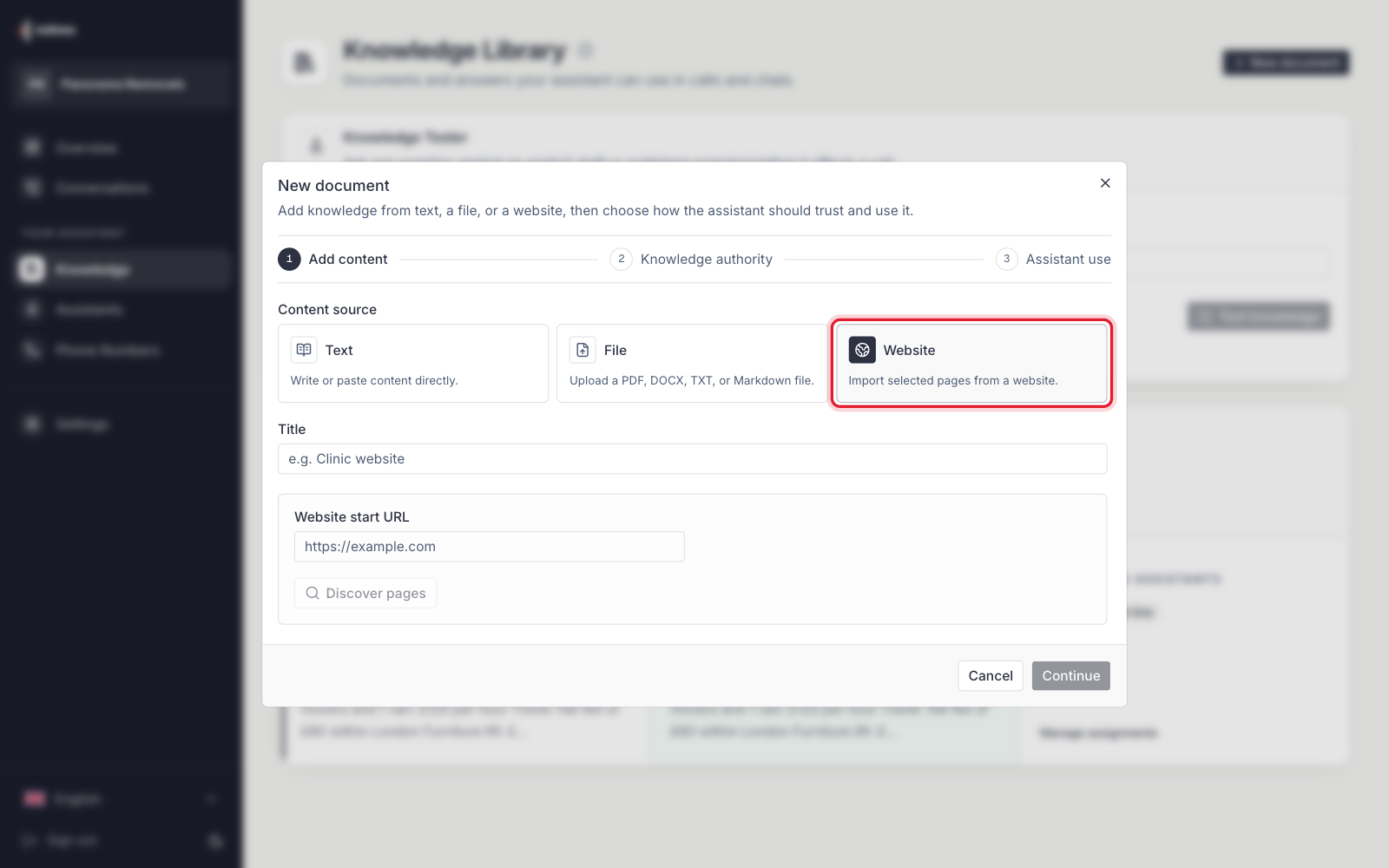
- Click Website.
- Enter a Title, for example "Website".
- Under Website start URL, enter the address of your website, for example https://www.your-business.com.
- Click Discover pages. rednea shows a list of the pages it found. Important pages are already selected.
- Choose the pages the assistant should know, for example services, prices and contact. Up to 10 pages per website are possible.
- Click Continue.
rednea checks the chosen pages every week. If something changed, a new draft is created. Your assistant keeps using the published version until you publish the new draft (step 6).
Step 3: Set the authority and the use
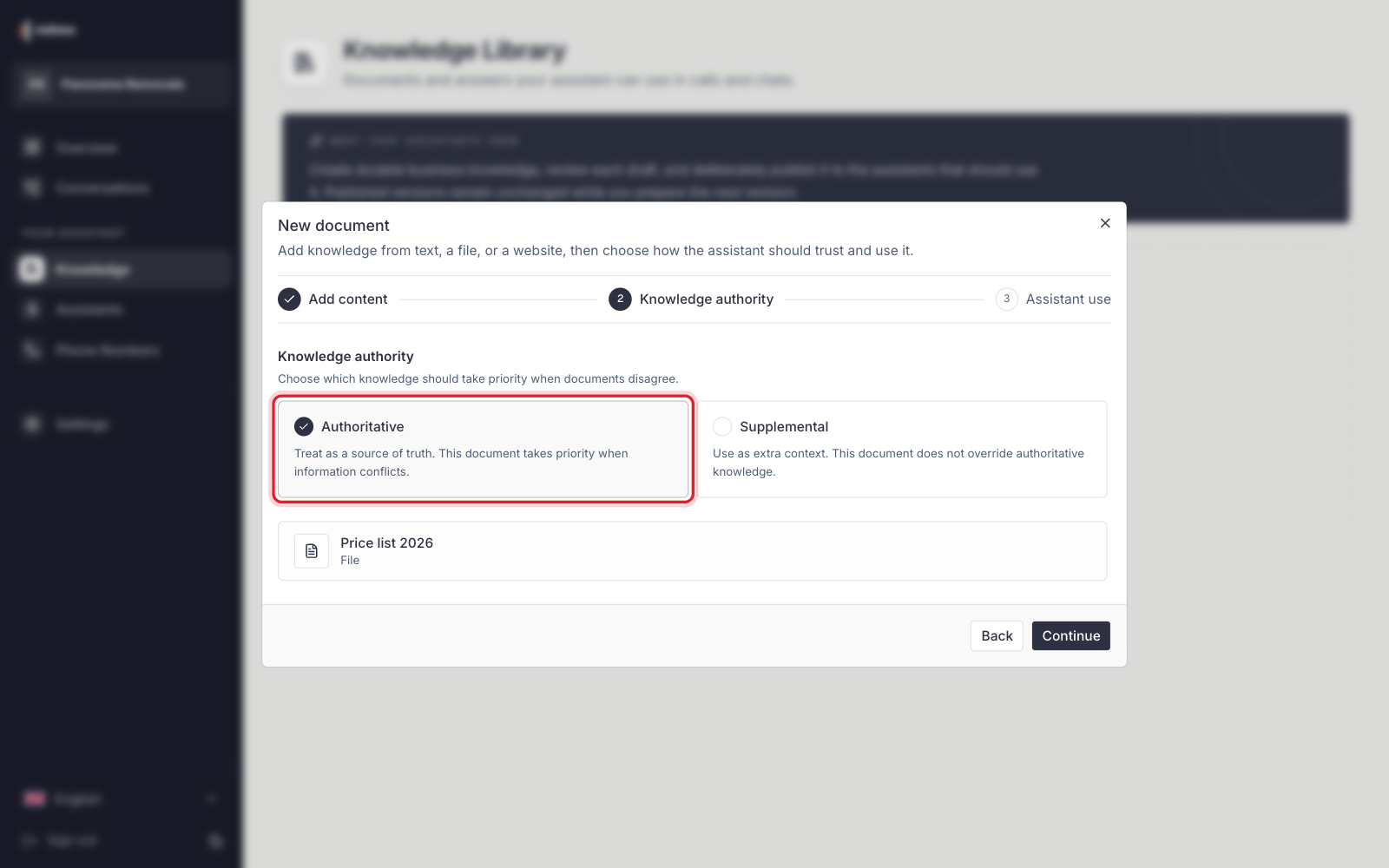
Knowledge authority sets which document applies when two documents contradict each other:
- Authoritative: The document is a reliable source and has priority. Choose this for your official price list, your opening hours or your rules.
- Supplemental: The document gives extra background but does not overrule authoritative details. For example an older brochure or general information.
Choose an option and click Continue.
Assistant use sets if the assistant may tell callers the content:
- Caller-answerable: The assistant may use the content directly to answer questions. This is the right choice for prices, services, menus and FAQs.
- Internal guidance: The assistant follows the content but does not pass it on. For example "For moves abroad, always suggest a survey visit". Internal notes stay internal.
Choose an option and click Create document.
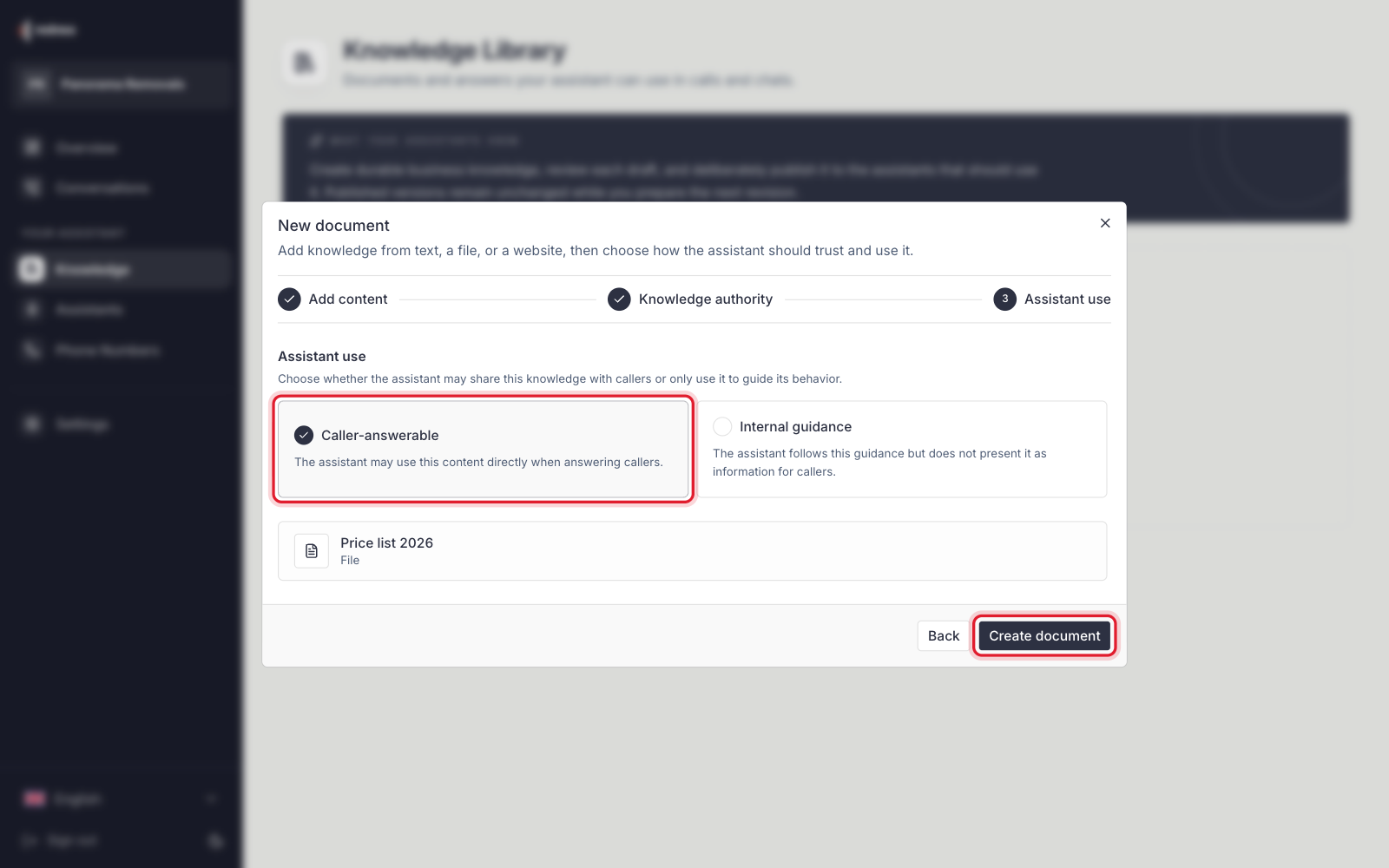
rednea now reads the content. With a large file this can take a few seconds. Then the document is in the library.
Step 4: Check the draft
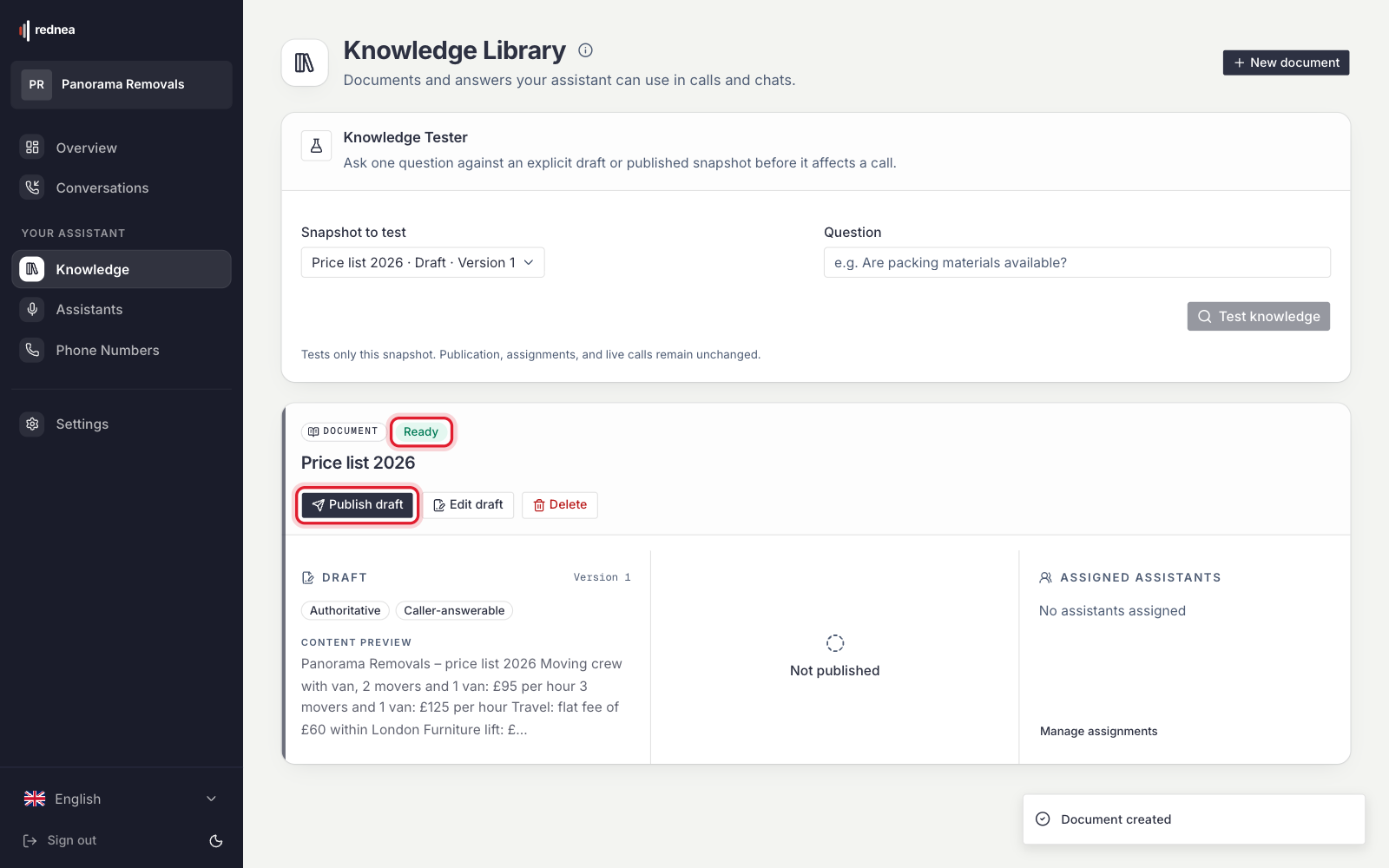
The new document appears as a Draft. The status is at the top left:
- Ready: The content was read completely.
- Needs review: Part of it was hard to read, for example a scanned page or a table. Check the content before you publish.
- Failed: No usable text could be read. Upload a better version of the file or enter the content as text.
Under Content preview you see the start of the text that was read. Check that prices, numbers and names are correct. For PDFs with scans there is Improve extraction at the bottom right: rednea then reads the document again more carefully and creates a new draft.
At this moment the right side still shows Not published and No assistants assigned. So your assistant does not know the document yet.
Step 5: Try it with the Knowledge Tester (recommended)
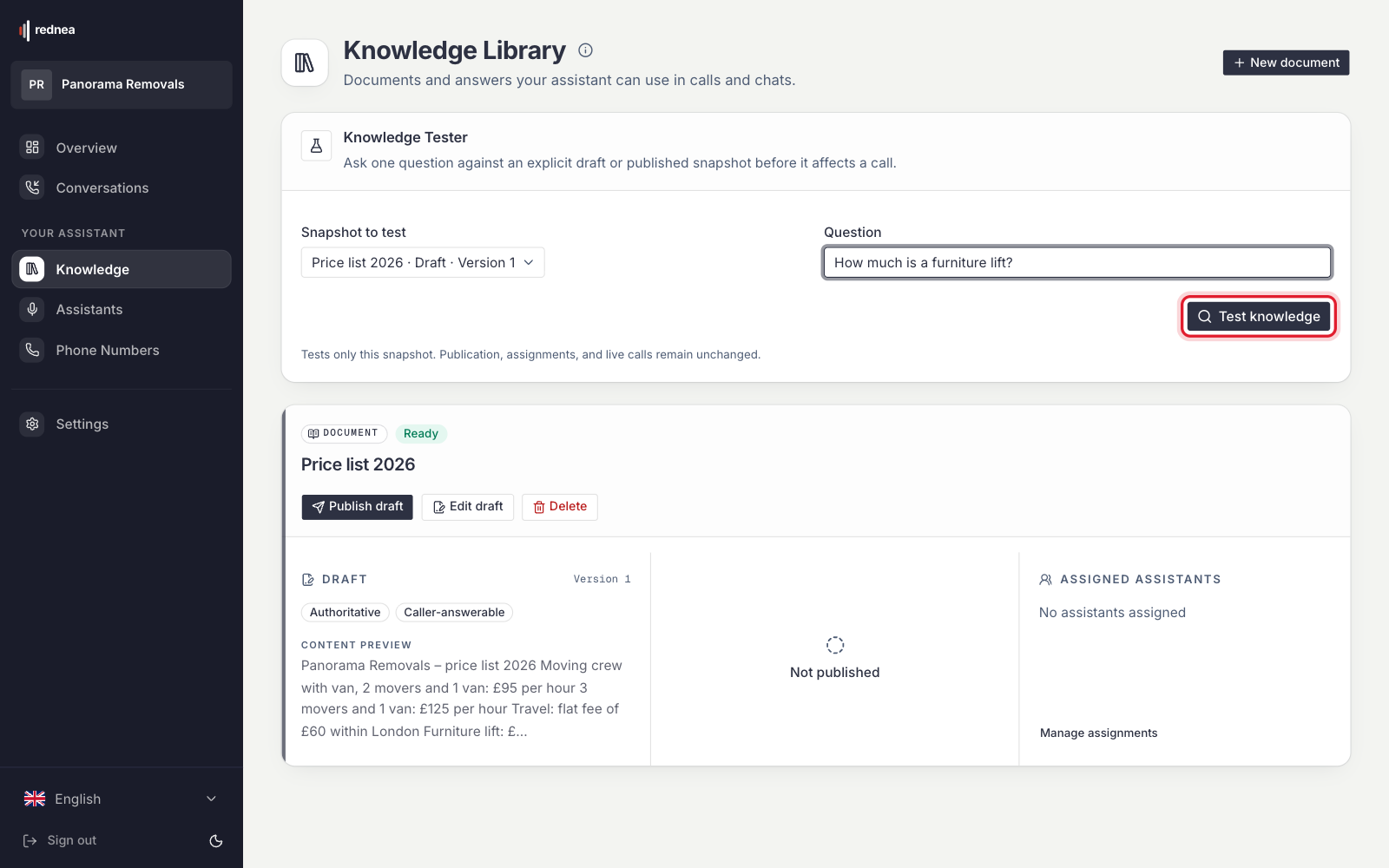
With the Knowledge Tester you ask your document a question before it affects a call.
- Under Snapshot to test, choose your document.
- Under Question, write a question the way a customer would ask it on the phone, for example "How much does a furniture lift cost?".
- Click Test knowledge.
You see a Proposed answer and below it the Selected evidence area: the passages from your document that the answer is based on. If it says No adequate evidence, the assistant finds nothing about it. Then add to the document. The test does not change anything in your calls.
Step 6: Publish the draft
Click Publish draft. After a moment, the Published column appears on the right with the version.
If rednea shows notes about the extraction, read them, tick the box at "I reviewed the extracted content and understand these warnings." and click Acknowledge and publish.
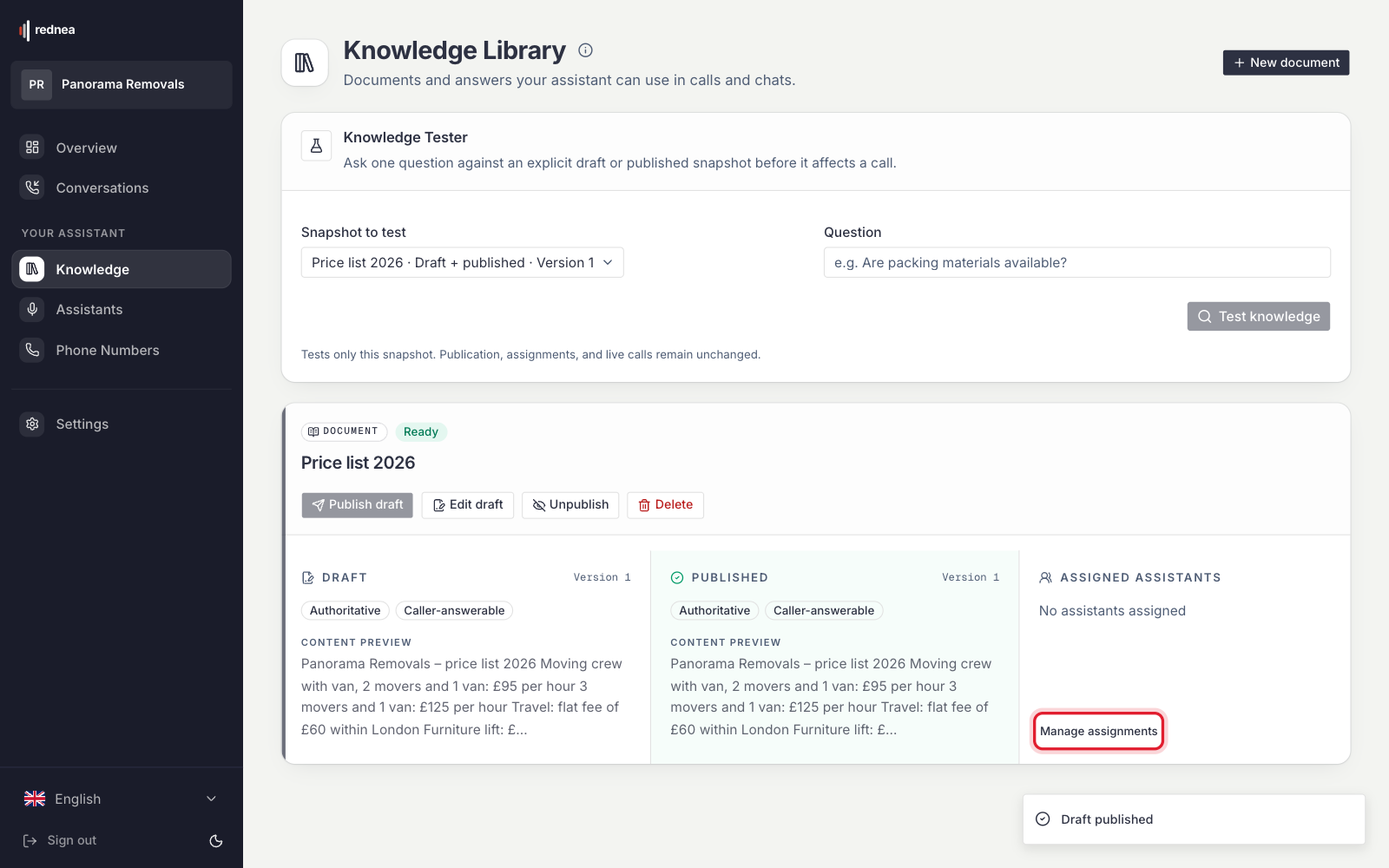
Step 7: Assign the document to your assistant
This step is the one people forget most often. Without an assignment no assistant uses the document, even when it is published.
- In the document, click Manage assignments on the right.
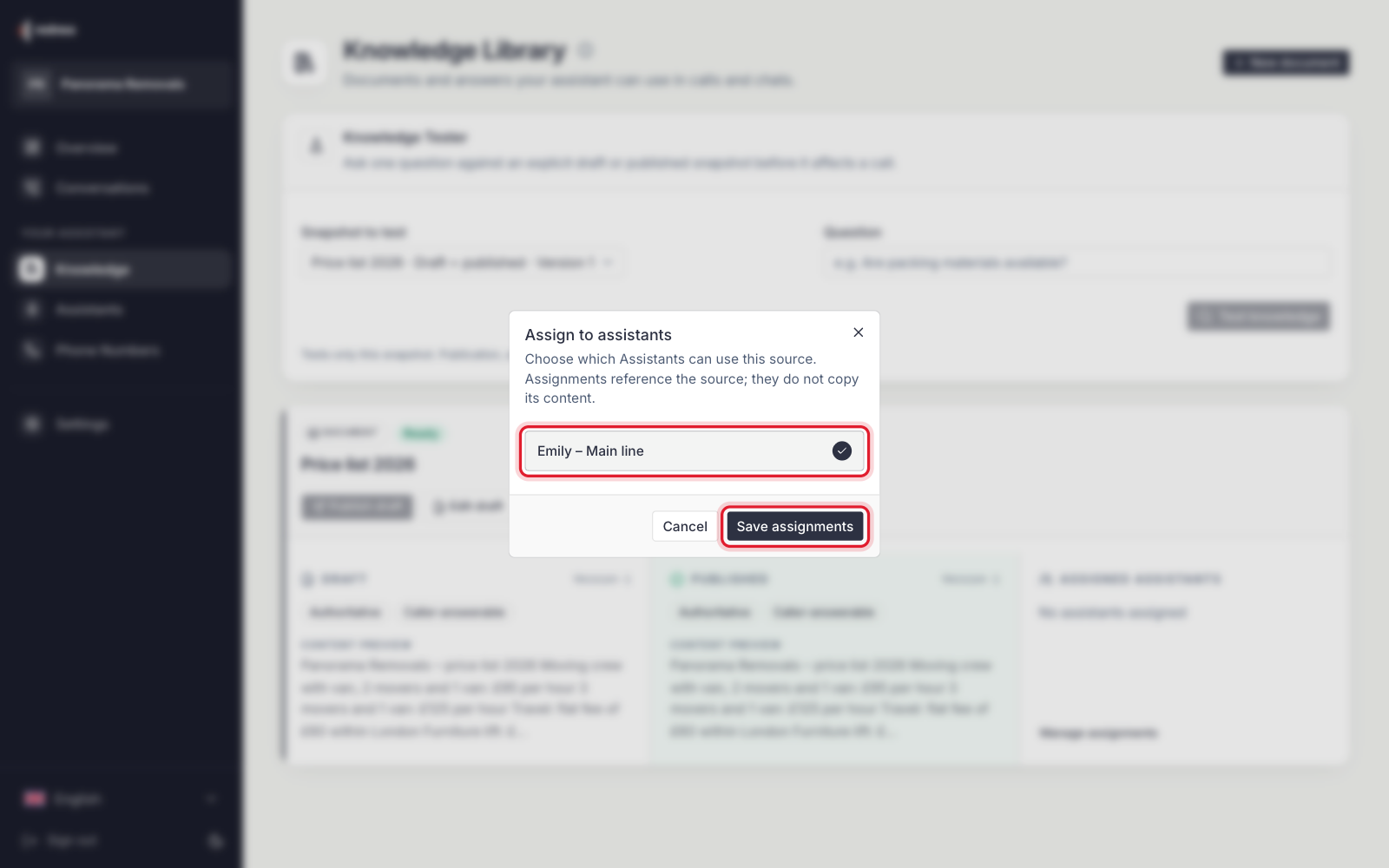
- In the Assign to assistants window, click each assistant that should use the document. A tick shows that it is selected.
- Click Save assignments.
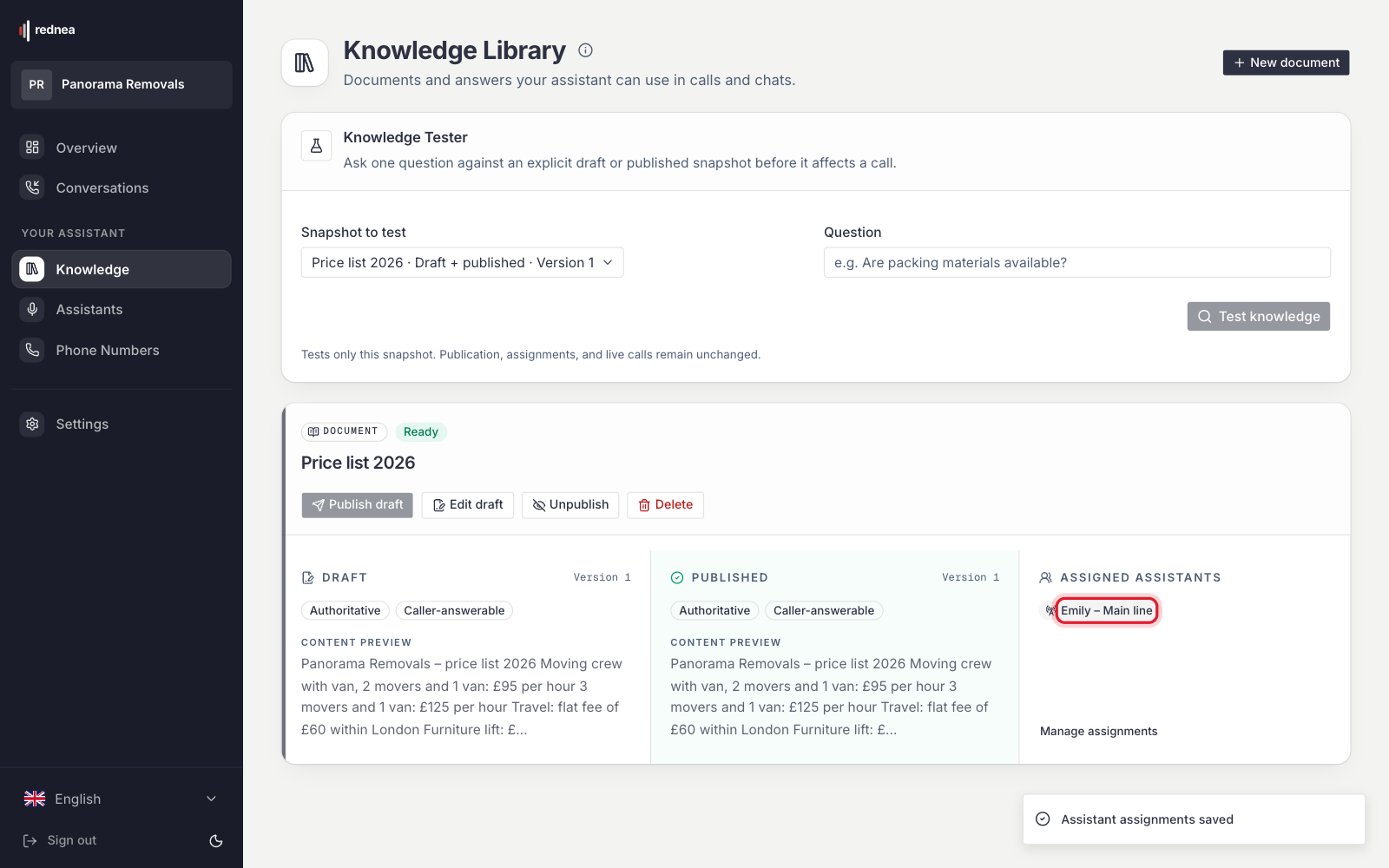
Under Assigned assistants you now see the name of your assistant. The document is now active.
If you have several assistants, for example one for English and one for Spanish, assign the document to each one that should know it.
Step 8: Check with a test call
Call your rednea number and ask a question whose answer is in the document. The assistant looks it up briefly and answers with your details. The lookup usually takes only one or two seconds.
Important:
- Changes apply from the next call. A call that is running keeps the knowledge that applied at its start.
- If the assistant finds nothing in your documents for a question, it does not guess. It says that it does not have this information and helps in another way if possible, for example with a callback note.
- Check the Instructions of your assistant (in the left column Assistants → your assistant → Instructions tab). If they say for example "You do not know the menu" or "Do not give prices", the assistant follows that, even when the document contains the details. Change such sentences.
Keep a document up to date
- New file, for example next week's menu: In the document, click Upload new version, choose the new file and click Upload and extract. A new draft is created. Your assistant keeps using the old version until you click Publish draft. The assignment stays, you do not have to make it again.
- Change text: For a text document, click Edit draft, change the content, save, and publish the new draft.
- Switch off for a time: With Unpublish, no assistant uses the document any more. It stays in the library, and you can publish it again later.
- Remove for good: With Delete and by typing the title to confirm. You cannot undo this.
When a message appears during the upload
| Message | What to do |
|---|---|
| The file is too large for the upload (maximum 15 MB). | Save the PDF with a lower image quality or split it into several files. |
| This file type is not supported or the file is damaged. | Save as PDF, DOCX, TXT or Markdown and upload again. |
| The file is empty. | Choose the correct file. |
| The file could not be transferred. | Check your internet connection and try again. |
| The file arrived but could not be processed. | Try again. If the error stays, contact us. |
| This business cannot process documents at the moment. | Your subscription is not active. Check it under Settings, Subscription tab, or write to us. |
Tips for good answers
- One topic per document. One price list, one FAQ, one menu. You find changes faster, and the assistant finds the right passage.
- Clear, complete sentences. "Furniture lift up to the 6th floor: €290 per job" is better than a table without headings.
- Add dates when something applies only for a certain time, for example "Menu from 26 to 30 October".
- Replace old versions instead of creating a second document with similar content. If two documents contradict each other, the authoritative one wins.
Frequently asked questions
Do I have to change my instructions so that the assistant uses the knowledge? No. As soon as a document is published and assigned, the assistant looks things up by itself. Only remove sentences that contradict it (see step 8).
What goes into the knowledge library and what into the instructions? The instructions say how your assistant should behave: greeting, tone, which details it takes down. The knowledge library holds facts to look up: prices, services, menus, FAQs. More about this in Setting up instructions for your assistant. For your address and opening hours, see Add your addresses, locations and opening hours.
Can the assistant also book appointments through the knowledge library? No. The assistant books appointments through your connected calendar. How to connect it is in Connect your calendar to rednea.
Does the caller see my documents? No. The assistant only uses the content to answer. It does not pass on documents with Internal guidance at all.
If you have questions or something does not work as expected, write to us at info@rednea.ai.
Related articles
Still have questions?
Write to us — we're happy to help. Or listen to a live demo right in your browser.