Set the language of your assistant (English, Spanish, French …)
Last updated 20 November 2026
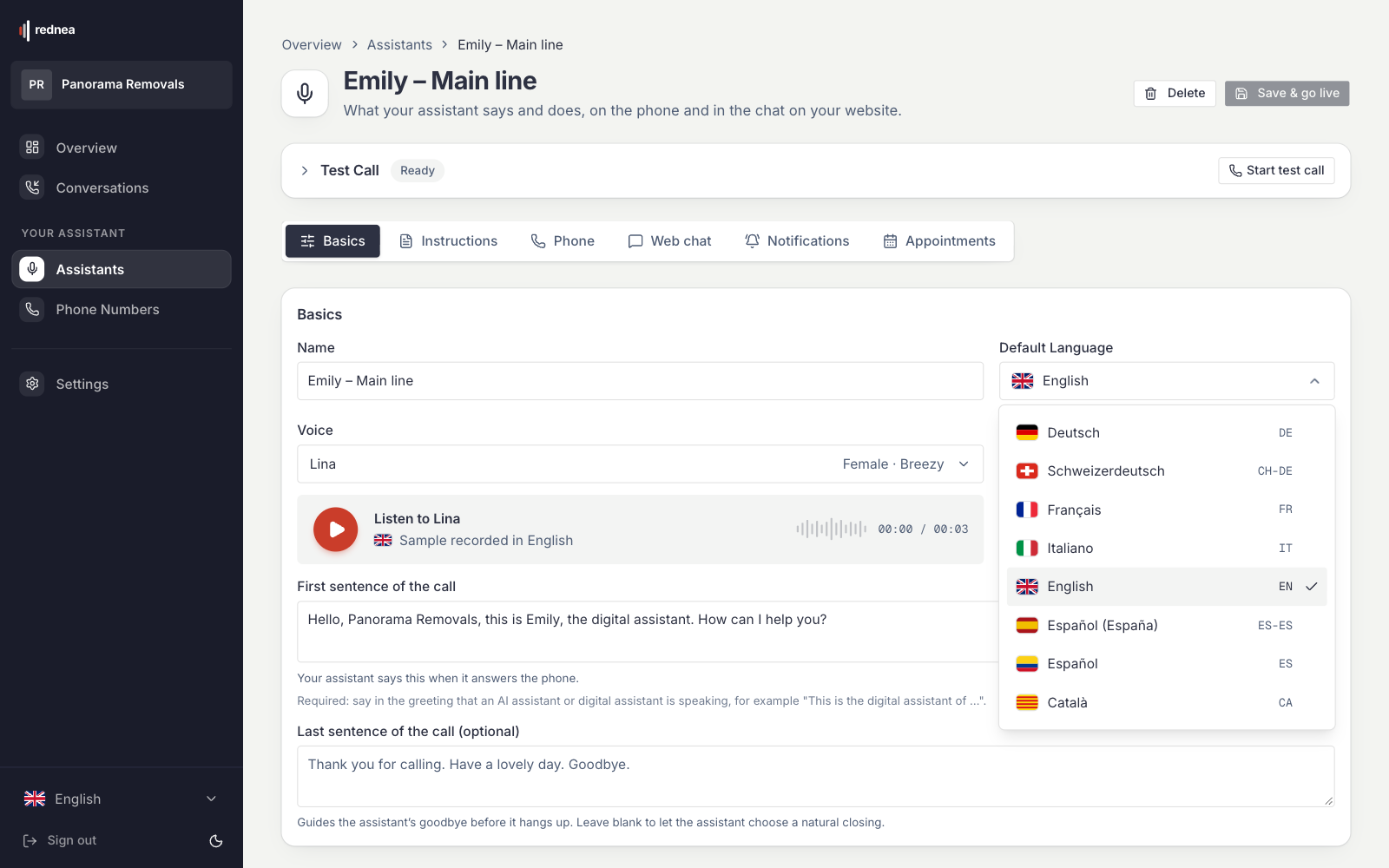
Every assistant has a Default Language. The assistant speaks this language as long as the caller does not show otherwise. The setting applies per assistant, not to the whole business.
In short: In the left column, open Assistants, then your assistant. In the Basics tab, choose in the Default Language field the language that most of your callers speak. If a caller clearly speaks another language, the assistant follows them. If the language is unclear, it stays with the default language. Test with Test draft and go live with Save & go live.
How to set the language
- In the dashboard, click Assistants in the left column, then your assistant.
- Below the Test Call area, the Basics tab is open. In the Basics card, the Default Language field is next to the name.
- Click the field and choose a language (first image below). In the list, each language is shown in its own language, for example English, Deutsch, Français, Italiano, Español (España) and Català.
- Check the First sentence of the call field further down (see below).
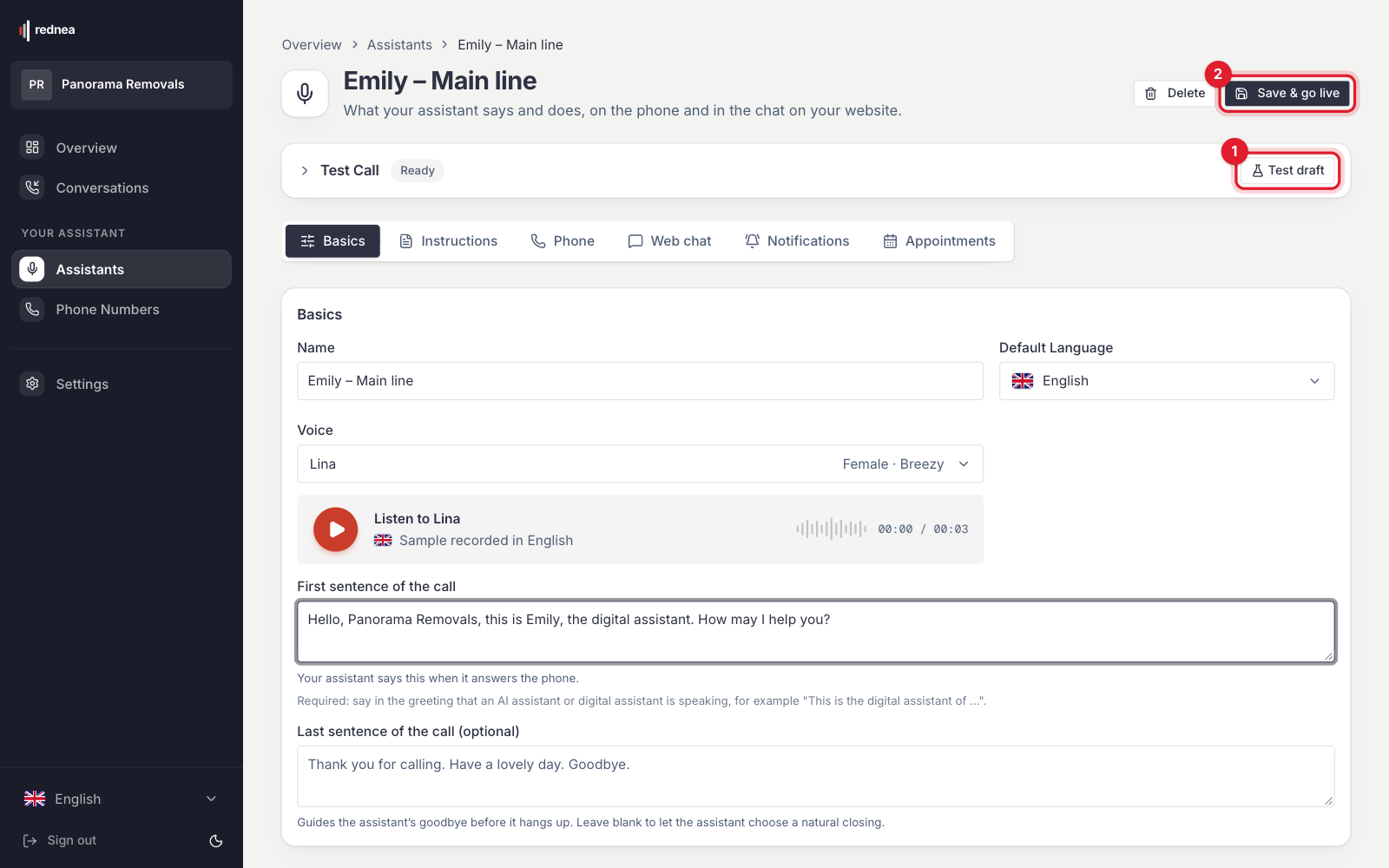
- Test the new language: at the top of the page, the button in the Test Call area is now called Test draft (red number 1 in the second image). The test call uses your unsaved change. Callers keep hearing the saved version.
- If everything is correct, click Save & go live at the top right (red number 2). From then on, the new language applies to all calls.
You choose the voice in the Voice field below. Every voice works in every language. More about this in Choosing the right voice for your assistant.
When a caller speaks another language
The assistant is instructed to follow the caller's language when the caller clearly speaks another language. If the language is unclear, for example after a short "Hello", it stays with the default language. There is no button and no menu for the switch: the caller simply speaks their language or asks for another one.
The switch is an instruction to the assistant, not a guarantee. Test the languages that are common for you with a test call: simply speak the other language in the test call. How a call runs from start to end is explained in How the assistant answers calls.
Which default language fits?
Choose the language that most of your callers speak. An example: a practice in Barcelona with mostly Spanish-speaking customers chooses Español (España). If someone calls in English, the assistant follows in English. With English as the default language, on the other hand, the assistant would keep speaking English until a caller clearly speaks another language.
If you have several phone numbers with rednea, for example one for each language, you can give each number its own assistant with its own default language. You choose the number in the Phone tab of the assistant.
The first sentence
The assistant speaks the First sentence of the call exactly as you write it. So write it in the default language. If the default language does not match the first sentence, the call starts in the wrong language.
If you like, you can say briefly in the first sentence that other languages are possible, for example: "Hello, Example Practice, how can I help you? We are also happy to speak Spanish or French."
For instructions such as "Always ask for the date of birth", use the Instructions tab. See Setting up instructions for your assistant.
Language of the email summary
The summary after the call has its own language setting:
- In the left column, click Settings, then the Notifications tab at the top.
- In the Email summary section, you find the Language of the email field (red number 2).
- With Same as the assistant, the email comes in the default language of the assistant that took the call. You can also choose a fixed language.
- Click Save notification settings at the bottom.
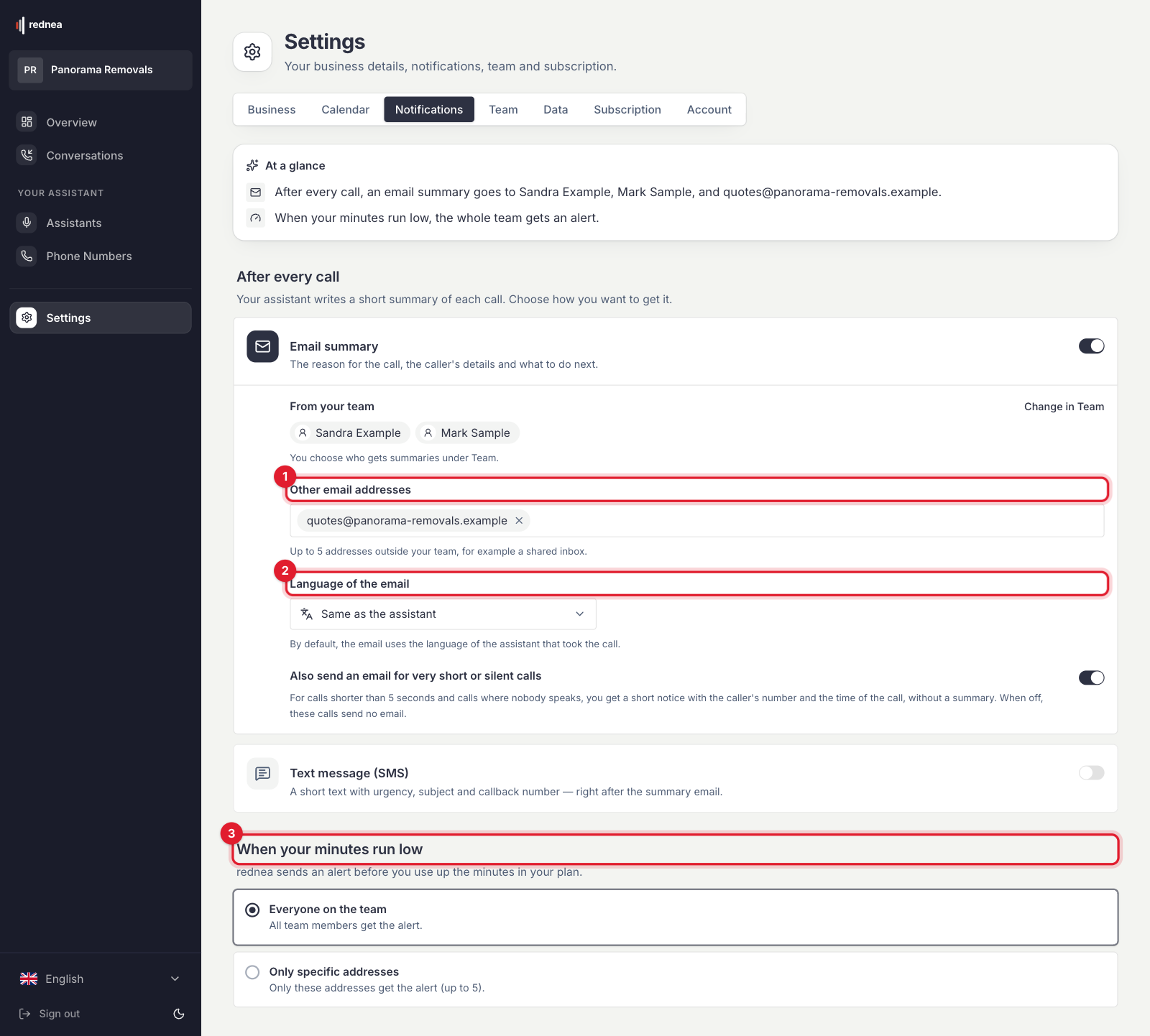
This setting applies to all assistants of your business.
Frequently asked questions
Do I have to choose Spanish or English as the default?
Choose the language of most of your callers. If someone clearly speaks another language, the assistant follows.
Does the assistant switch language by itself?
Yes, if the caller clearly speaks another language or asks for it. If the language is unclear, it stays with the default language.
Can I set a different language for each phone number?
Yes, if you have several numbers: with a separate assistant for each number. The default language applies per assistant.
Which language does the summary come in?
By default in the language of the assistant. Under Settings → Notifications → Language of the email you choose another one.
I do not see the "Assistants" area. Why?
Your access has the Viewer role. Only people with the Owner or Admin role can change the language. More about this in Invite your team, set roles and listen to calls.
Related articles
Still have questions?
Write to us — we're happy to help. Or listen to a live demo right in your browser.