When does the assistant answer? Always, as a backup or only on some days
Last updated 20 November 2026
Some businesses want the assistant to answer every call. Others want it only as a backup when the reception is busy. Others again want it only on some days. All of this is possible. You control it with the call forwarding of your existing number.
In short: Every call that reaches your rednea number goes to your assistant. When a call reaches it, you set at your phone provider or in your phone system: forward all calls (the assistant always answers), forward when unanswered and when busy (the assistant is a backup), or switch the forwarding on and off on certain days. In rednea itself you do not set days or times for taking calls. Only the transfer to a person can be limited to certain times in rednea.
The three options at a glance
| Option | Call forwarding | Does your phone ring first? |
|---|---|---|
| Assistant always answers | all calls: **21*NUMBER# | No |
| Assistant as a backup | when unanswered, optionally also when busy | Yes |
| Only on certain days | switch the forwarding on and off at these times | depends on the day |
Always replace NUMBER with your rednea number. You find it in the dashboard in the left column under Phone Numbers. How to set up the forwarding step by step is in Connect your existing number to rednea.
Option 1: The assistant always answers
On your phone, dial **21*NUMBER# and press the call button. From now on every call goes straight to your assistant. Your own phone does not ring. With ##21# you switch this forwarding off again. If the standard code does not work on your network, check your provider's help pages.
This suits, for example, a business without a fixed person on the phone, the time outside opening hours, or holidays.
Option 2: The assistant as a backup
Your phone rings first. The assistant takes over only when nobody answers or when the line is busy.
- When unanswered: The standard GSM code is
*61*NUMBER*11*20#. The 20 is the delay in seconds, so how long your phone rings before the assistant takes over. You can change it to 10, 15, 25 or 30. - When busy: The code varies by provider (commonly
*67*). With this, the assistant takes over when your reception is on another call.
Some providers use their own codes or let you set the forwarding in their app or online account. Check your provider's help pages for the exact steps.
Good to know: outside your working hours nobody answers. With forwarding when unanswered, the assistant then takes over automatically, without you switching anything. Callers first hear only a few rings. This requires that your phone is switched on and rings. This suits, for example, a doctor's practice that needs the assistant early in the morning, at lunchtime and in the evening.
Option 3: Only on certain days or times
If your assistant should answer directly on some days and be only a backup on others, switch the forwarding for all calls on and off on these days. An example for a practice whose reception is not staffed on Monday and Tuesday:
| Days | Setting | How to switch |
|---|---|---|
| Monday and Tuesday | all calls go straight to the assistant | dial **21*NUMBER# in the morning |
| Wednesday to Friday | the reception answers, the assistant is a backup | dial ##21# on Wednesday morning |
After each switch, check with a call from another phone that it rings the way you want. If the forwarding when unanswered or when busy no longer works afterwards, set it up again with your provider's code.
If you have a phone system, for example in a practice with several phones, you usually set up the forwarding there. Ask your provider or the company that looks after your system if the forwarding can switch automatically by weekday or time.
In addition: the assistant behaves differently by day
Your assistant can do something different depending on the day or time, for example only take a message on some days. For this, put the weekday and the time into its instructions:
- Click Assistants in the left column, then your assistant.
- In the row of tabs, click Instructions.
- Below the Instructions for your assistant field, at Insert a detail, click Day of the week and Current time.
- Write the rule.
- Test the rule in the Test Call area at the top of the page with Test draft. Callers hear the new rule only after you click Save & go live.
For example:
"Today is {{day_of_week}}, the time is {{current_time}}. On Monday and Tuesday, answer questions and take down appointment requests. On the other days, take down only the name, callback number and request, and say that the team will call back."
Weekday and time apply in the Timezone that you set under Settings → Business tab, in the Opening hours card. Your assistant writes the weekday in its language, so for an English assistant for example "Monday". More about the instructions: Setting up instructions for your assistant.
Do not confuse: transfer to a person
The call forwarding decides when a call comes to rednea. If your assistant should hand a call to you or your team during the call, you set this up in the Phone tab of your assistant.
You can limit this transfer to certain times in rednea, for example only during your working hours:
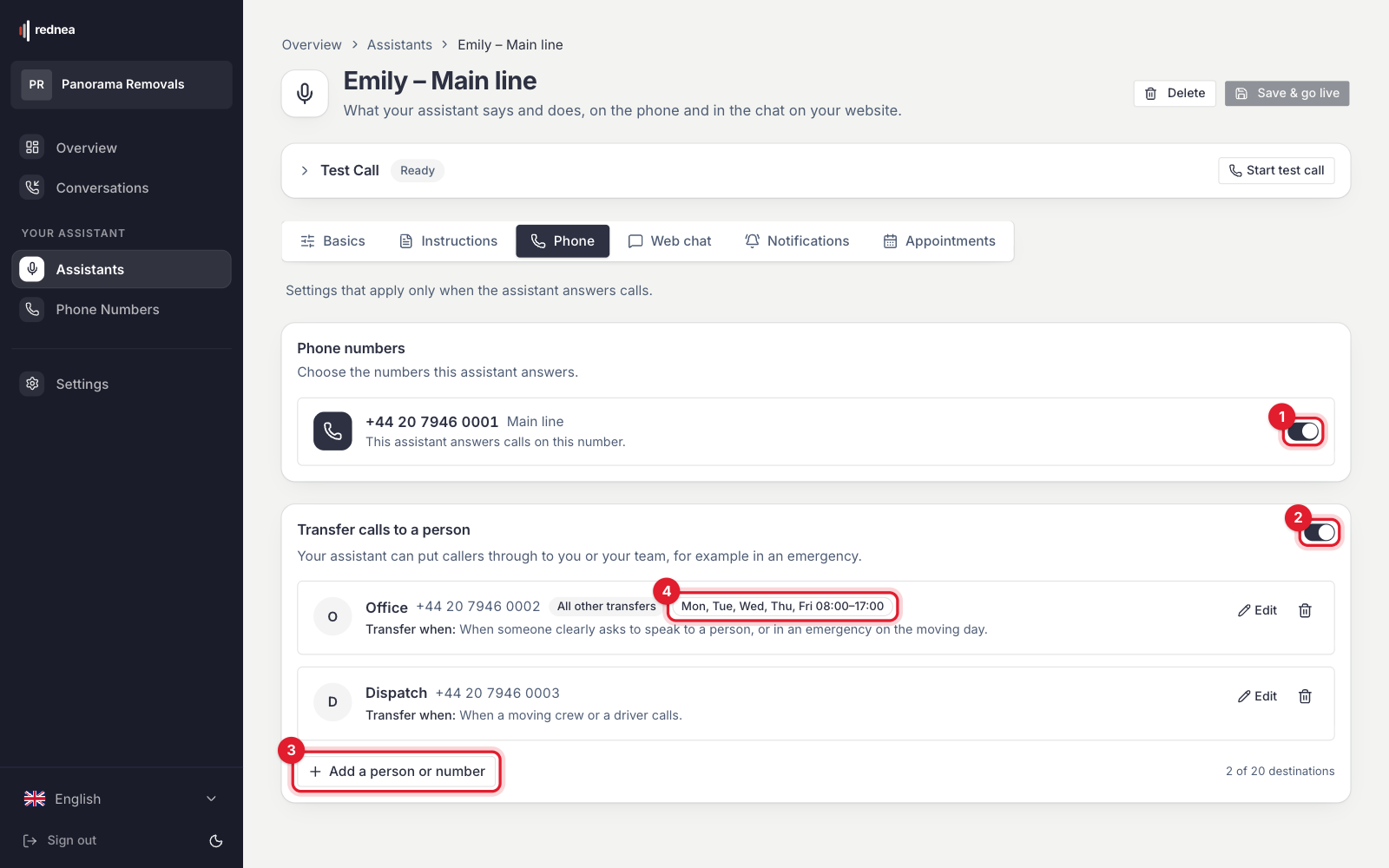
- In the left column, click Assistants, then your assistant, and in the row of tabs click Phone. The Transfer calls to a person switch must be on (see 2 in the first image).
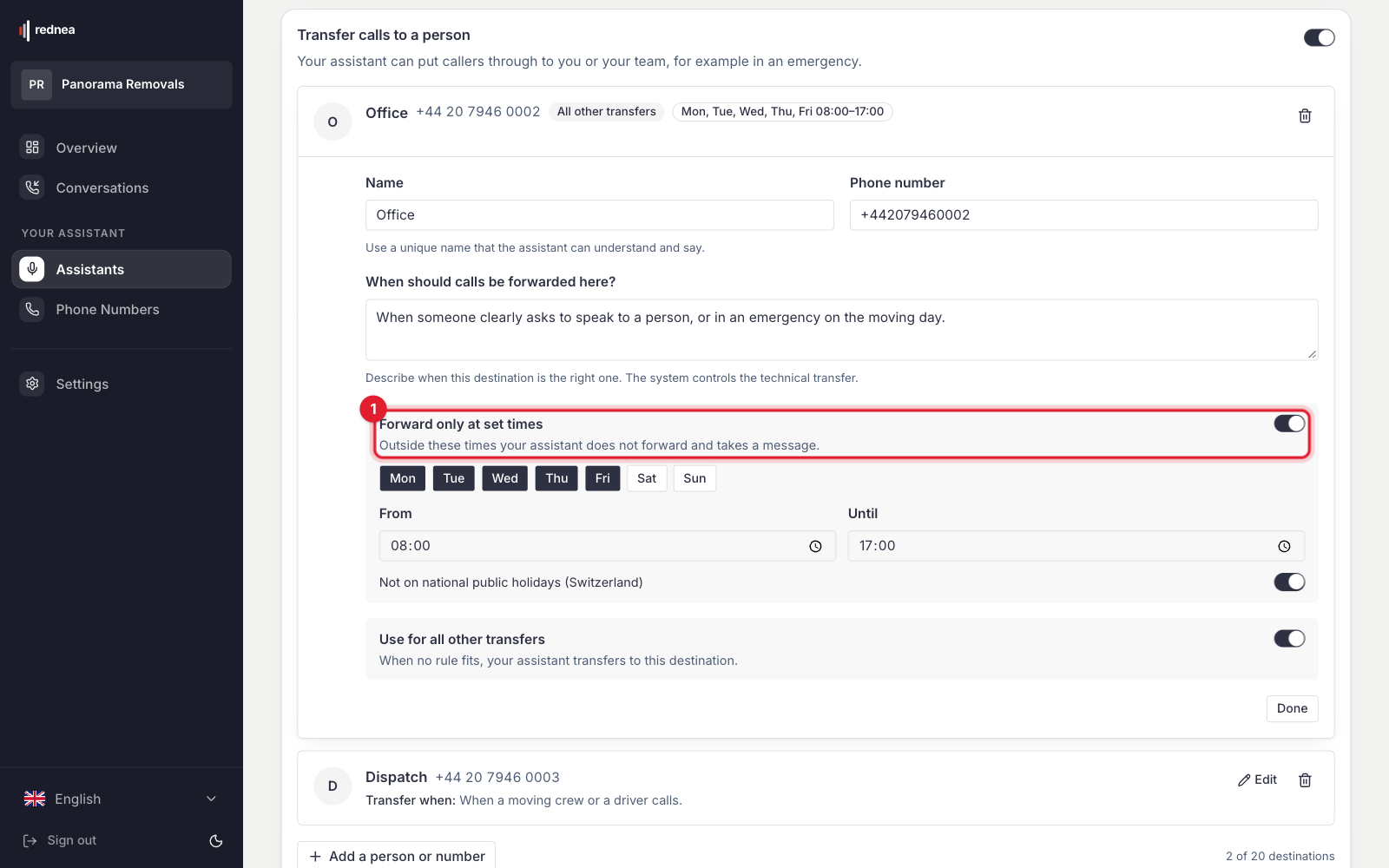
- At the transfer destination, click Edit and switch on Forward only at set times (see 1 in the second image).
- Choose the Weekdays and the times at From and Until. The switch Not on national public holidays (Switzerland) skips only Swiss national holidays, so businesses in the EU and UK usually leave it off.
- Click Done, then Save & go live at the top right.
Then the destination shows its times, for example "Mon, Tue, Wed, Thu, Fri 08:00–17:00" (see 4 in the first image). Outside these times your assistant does not transfer and takes a message.
The times apply in the Timezone from the Business tab.
We recommend a direct number as the destination, for example a mobile number or an extension. If the destination is your main number and that number is forwarded to rednea, the call can land with your assistant again.
What this means for your minutes
Every call that the call forwarding brings to your assistant is a call on your rednea number and counts towards your minutes. If your assistant transfers a call, the transferred time counts too. Calls that you answer yourself do not come to rednea and do not count.
When your minutes and the buffer are used up, your assistant does not take new calls until the next month. If you forward all calls, nobody reaches your team then. How you are warned by email before that is in Pricing & minutes.
Activating the forwarding is free with most providers. You pay for the forwarded call at your normal rate.
Frequently asked questions
Can I set times in rednea when the assistant answers?
No. Your assistant answers every call that reaches your rednea number. When a call reaches it, you set with the call forwarding. In rednea you can only set at which times your assistant transfers to a person, see above.
How do I check that everything is set up correctly?
Call your existing number from another phone. Then you see the call in the dashboard under Conversations. How a call with the assistant runs is shown in How the assistant answers calls. A tour of the dashboard is in The dashboard at a glance.
How do I switch off all forwarding at once?
With ##002#. After that only your own phone rings again.
Do callers notice which option is active?
No. They call the same number as always. The caller's number stays visible, also for your assistant.
I am not sure which option fits. Who can I ask?
Write to info@rednea.ai and tell us when your phone is busy and when it is not.
Related articles
Still have questions?
Write to us — we're happy to help. Or listen to a live demo right in your browser.