Invoices, payment and subscription status
Last updated 20 November 2026
You manage your invoices, your payment method and your billing address in the secure customer portal of Stripe, our payment provider. You find the way there in the rednea dashboard.
In short: In the dashboard, open Settings → Subscription and click Manage subscription. In the Stripe customer portal you see all invoices and can download them. There you also change the payment method, billing email and address. Only Owners and Admins can open the portal.
Find and download invoices
- Sign in to the rednea dashboard.
- Click Settings in the left column.
- At the top of the page, click the Subscription tab. The Subscription & billing card shows your status.
- At the bottom of the card, click Manage subscription (red number 1). You go to the Stripe customer portal.
- In the portal you see the list of your invoices. Open an invoice to download it as a PDF, for example for your accounting.
Use the link back to rednea in the portal to return to the dashboard.
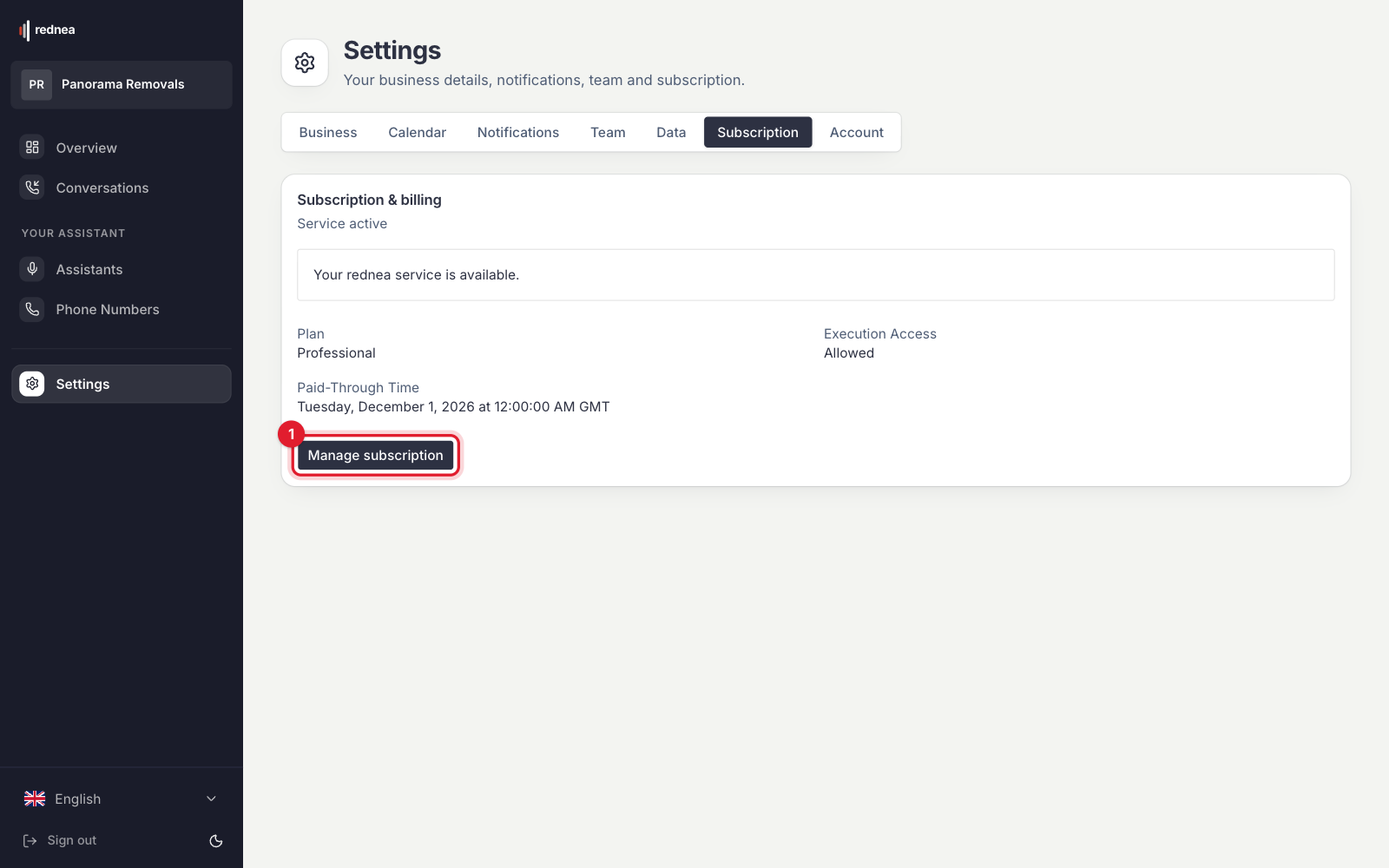
Note: The text of the button depends on the status. With an open payment it is called Fix payment, with a scheduled cancellation Keep subscription. It always goes to the same portal.
What you can change in the Stripe customer portal
- See and download invoices.
- Update the payment method, for example a new credit card.
- Billing details: name, email address, address and phone number.
- Cancel the subscription, at the end of the paid period. The contract terms are in Pricing & minutes.
You do not change your plan in the portal. For this, write to info@rednea.ai. You find the plans in Pricing & minutes.
Billing email to the right address
Emails from Stripe, for example about a failed payment, go to the email address that is stored at Stripe. At sign-up this is the address you entered in the checkout. If this inbox is not always read, for example during holidays, change the address in the portal under the billing details.
This address is separate from the recipients of the call summaries. You set those under Settings → Notifications.
When a payment fails
The status in the Subscription & billing card then changes to Payment recovery. This means:
- The service keeps running during the payment attempts. Your assistant keeps taking calls.
- Click Fix payment and add a valid payment method in the portal.
Do this soon. If the payment stays open, the subscription can end. When the service has expired, new calls and tests are blocked. Settings and history stay available.
What the subscription status means
The current status is at the top of the Subscription & billing card. Below it you see Plan, Execution Access (Allowed or Blocked) and, if available, the Paid-Through Time.
- Service active: Everything is in order.
- Cancellation scheduled: The service keeps running until the paid-through time. The Keep subscription button goes to the portal, where you can undo the cancellation.
- Payment recovery: A payment failed, see above.
- Phone number pending: The payment is confirmed. Configuration and tests are available while rednea assigns you a phone number.
- Expired — awaiting cutoff approval or Expired — access extended: Your subscription has ended. The service and the phone number stay available for a while. The note in the card says how long.
- Service expired: New calls and tests are blocked. Settings and history stay available. Owners and Admins may see the Choose a current plan field and the Reactivate service button here. With these you sign up again in the Stripe checkout. If there is already an unfinished checkout, the button is called Resume existing Checkout. When this choice appears, the button to the customer portal is missing. If you then need old invoices, write to info@rednea.ai.
- Reactivating: You came back from the checkout, and rednea is still waiting for the confirmation of the payment. The page updates by itself. The service runs again only after the confirmation.
- Subscription not linked: see the next section.
"Subscription not linked"
This status means: your billing is not yet linked to your business in the dashboard. We set this up for you. In this status, the button to the customer portal is usually missing too.
Write to info@rednea.ai and give:
- the name of your business,
- the email address you used to sign up for the subscription.
We link the billing and get back to you. If you need invoices for your accounting in the meantime, say so in your email.
Who sees the billing
All members of your team see the Subscription tab. Only the Owner and Admin roles open the customer portal. People with the Viewer role see only the Subscription and Account tabs under Settings, and in the card the note "Only Owners and Admins can manage billing." You set the roles under Settings → Team. More about this in Invite your team, set roles and listen to calls.
Error messages in the card
- "No stored Stripe customer is linked to this Business. Contact rednea." Your billing is not linked yet. Do the same as for "Subscription not linked" above.
- "Stripe billing could not be opened. Try again." Reload the page and click the button again. If it still does not work, write to info@rednea.ai.
- "Subscription status could not be loaded." Click Try again or reload the page.
Frequently asked questions
Where do I find my invoices?
Under Settings → Subscription → Manage subscription, in the Stripe customer portal. There you download each invoice.
Can I change the email address for invoices?
Yes. In the Stripe customer portal, change the email address, the address and the phone number in the billing details.
Does my assistant keep running if a payment fails?
Yes, the service keeps running during the payment attempts. Update your payment method with Fix payment.
I do not see the "Manage subscription" button. Why?
Either you have the Viewer role, or the billing is not linked yet. Ask an Owner or Admin for help, or write to info@rednea.ai.
Can I change my plan in the portal?
No. To change your plan, write to info@rednea.ai.
Related articles
Still have questions?
Write to us — we're happy to help. Or listen to a live demo right in your browser.