Google Calendar Appointment Booking: A Complete Setup Guide

You're under a sink, on a ladder, or mid-consultation, and your phone is buzzing in your pocket. You can't answer, you can't call back for an hour, and that caller won't wait. Google Calendar appointment booking helps, but only if you set it up for how customers contact you, not just how you'd like them to.
Why Booking Pages Are Only Half the Answer
An electrician I work with kept losing the same kind of job. A homeowner would call with a tripping breaker, get voicemail, and ring the next number on the list before he'd even taken his gloves off. He'd already published a booking page on his website. It worked fine for people sitting at a laptop comparing quotes on a Sunday evening.
It did nothing for the caller with no power, standing in a dark kitchen, who wanted a person to tell her when someone could come.
That's the split you need to understand before you touch any settings. A booking page is a self-service channel. It assumes the customer can find the link, read the slots, complete a form, and wait for an email confirmation. Plenty of your best customers won't do that. They're driving, they're on a job themselves, they're older, they're more comfortable in another language, or the problem is urgent and messy enough that a fixed slot feels wrong.
What the Booking Page Actually Solves
Used properly, the page does one job very well. It turns your calendar into a source of truth that customers can book against without a phone tag exchange. Google's documentation states that eligible accounts automatically generate a booking page based on weekday availability and exclude times when you're busy, which reduces double booking risk.
That automatic conflict check is where the real value lies, not in the link itself. You add a site visit, a school run, or a supplier meeting, and that time stops being offered. A successful booking lands in your calendar without you copying details from an email at 9 pm.
A booking link doesn't answer the phone. It only helps the people who were never going to call in the first place.
Where the Page Quietly Stops Helping
Phone-first customers are where the model breaks. Someone with a leaking pipe doesn't want to guess whether they need a 30 minute or a 60 minute appointment. A patient calling a small clinic may need triage before a time makes sense. A caller asking in Spanish or German may abandon an English form even if the slot itself is perfect.
That's why the stronger setup treats the page as one channel inside a wider intake workflow, not a replacement for conversation. If you're exploring that wider model, a virtual receptionist for appointment booking shows how voice intake and the calendar can work together. You keep the self-service page for confident online bookers, and you add a phone front door for everyone else. Same calendar underneath. Two ways in.
Creating Your Appointment Schedule the Right Way
Start on a desktop computer. You can view and tweak plenty on mobile later, but creating the schedule cleanly the first time is a desktop job. Open Google Calendar, click Create, and choose Appointment schedule.
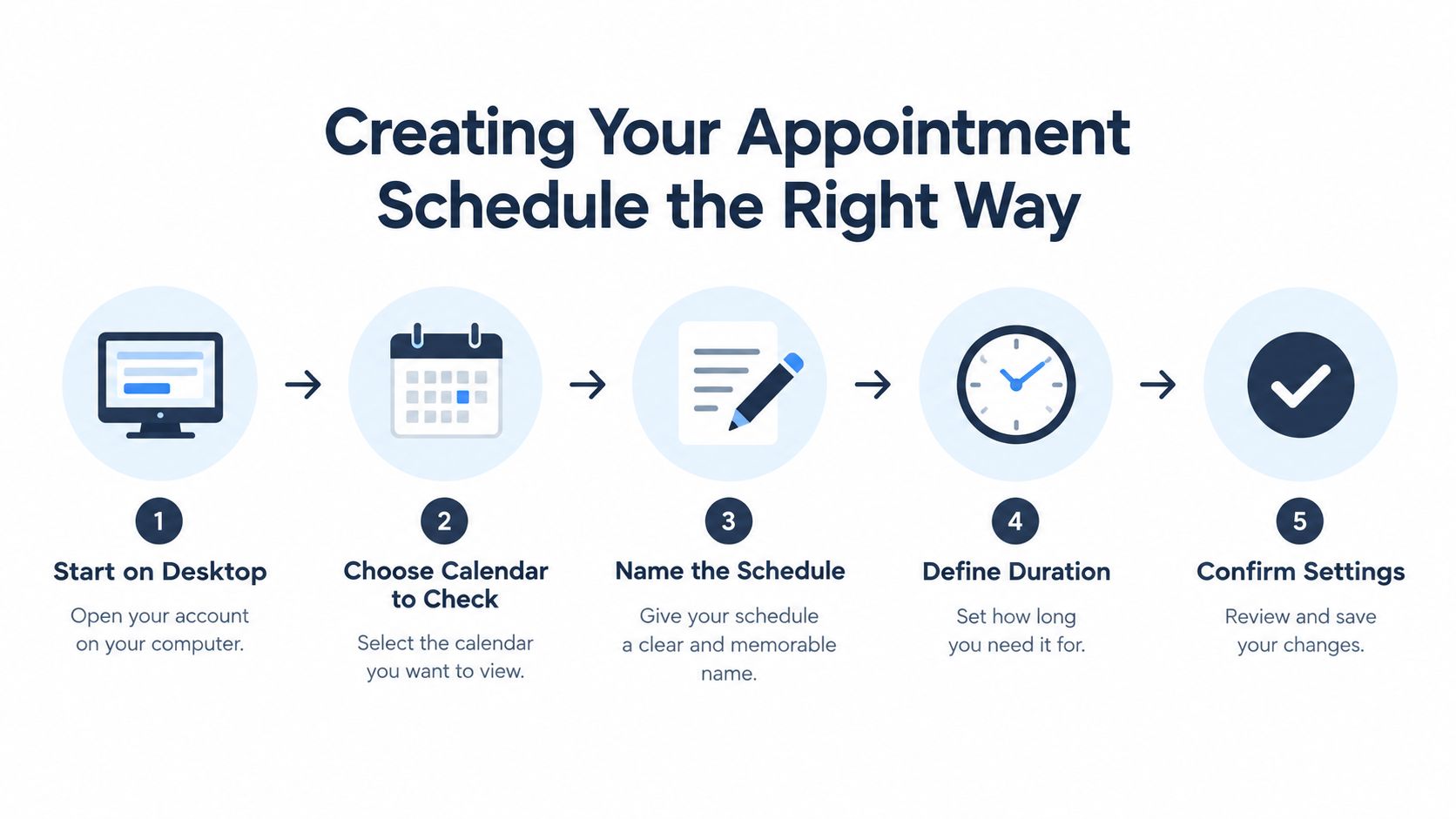
Work in this order and you'll avoid most of the mess I get called in to fix.
Set the Basics Before You Share Anything
- Choose the calendar to check: Pick every calendar that should block availability, not just your default one. If jobs live on a shared team calendar and personal commitments live elsewhere, both need checking.
- Name the schedule plainly: Use the service name the customer would say out loud, like Boiler Service Visit or Initial Consultation. That title appears on the page and in confirmations.
- Define duration plainly: Set the appointment length to the time the work takes at the door, not the time you wish it took. Travel belongs in buffers, which you'll add later.
- Confirm the time zone: This matters the moment you serve customers across a border or take calls from people travelling. A wrong zone creates phantom disagreements about when you agreed to arrive.
On duration, you have more flexibility than older guides suggest. In October 2023, Google reduced the minimum appointment length from 15 minutes to 5 minutes and let you control whether schedules appear in the web calendar view. Short slots suit quick callbacks or triage calls. They don't suit field work, so don't shrink a site visit just to look more available.
Set Recurrence, Lead Time, and the Booking Window
Next, set your recurring weekly availability. Build it around when work can start, not around your whole working day. If your first job can start at 8 am but your last can only start at 3 pm because of drive time home, reflect that. You can add adjusted availability for specific dates later, but the weekly pattern carries the load.
Then set two numbers people routinely skip. The maximum advance notice controls how far ahead anyone can book. The minimum lead time controls how soon they can book from right now.
Field note: Google's default minimum lead time suppresses near-term slots, so a brand new page can look empty this morning even when you're free. That's a setting, not a sync failure.
Check that default before you panic and rebuild the page. If you want same-day work, shorten it deliberately and accept the operational cost. If you need parts ordered or notes reviewed first, keep it longer and let the page push people to tomorrow.
Finally, decide where bookings should land before you publish the link. A solo contractor can use a personal work calendar. A growing team should book onto a shared calendar that dispatch or a partner can see without asking. Retroactively moving a live booking page between calendars is where double bookings creep in, so make that call now, add your location and intake questions, and only then share the link.
Workspace vs Personal Google Account Capabilities
The account behind your booking page decides what breaks later. Plenty of owners build everything on a personal account because it's already signed in, then discover the ceiling when they add a second technician or a second service.
Booking-page capabilities by Google account type
| Feature | Personal Google Account | Workspace Individual | Workspace Business Standard and above |
|---|---|---|---|
| Booking pages | One page | More flexibility for a solo business | Unlimited pages |
| Multiple calendar checks | Limited | Available for subscriber features | Check several calendars for conflicts |
| Payment collection | Not the practical route | Subscriber feature | Collect payment through Stripe |
| Reminders and email verification | Basic setup | Subscriber feature | Available across team workflows |
| Best fit | Testing one simple service | Solo professional | Team or multi-service operation |
The hard limit is clear in Google's own comparison. Personal Google Accounts are limited to one booking page, while Workspace subscribers can publish unlimited booking pages, check multiple calendars, and collect payments through Stripe. For a freelancer offering one consultation type, one page may be enough. For a trades business offering quotes, repairs, and servicing, it isn't.
Why This Matters Before You Add Phone Booking
Plan the account around the intake you want next, not just today's link. If an assistant needs to check two technicians before offering a slot, multiple calendar checks aren't a nice extra. They're the mechanism that prevents a confident booking into a diary that's already full.
The same logic applies to payments and verification. A clinic that wants email verification, or a consultant who wants payment at booking, should confirm the plan supports it before printing the link anywhere. If you're mapping the connection itself, this breakdown of a Google Calendar integration helps you see what the calendar has to expose.
My working rule is simple. Solo freelancer, start personal or Individual and prove demand. Growing trades team, move to a Workspace business plan before you publish multiple services. Multi-location practice, don't build on personal accounts at all.
Testing Bookings the Way Real Callers Will Use Them
Don't test by opening your own page while signed in and nodding at it. Test like a stranger, on a phone, in a hurry, with no patience for your internal logic.
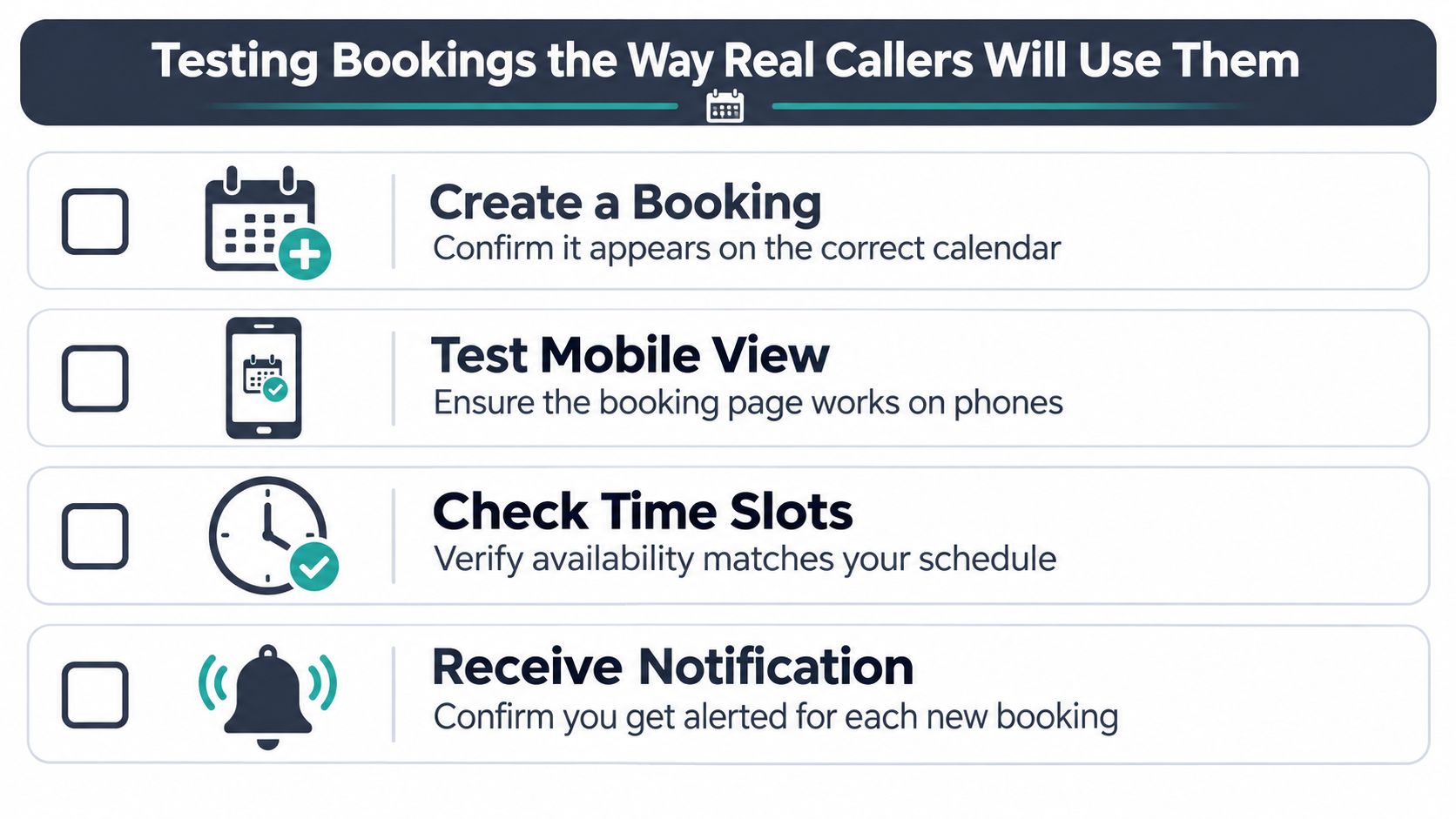
Run these four scenarios in order before the link goes anywhere public.
The Four Checks That Catch Most Failures
- Create a test booking: Use a separate account, book a slot, and confirm the event appears on the correct calendar with the right title, duration, and intake answers. Check the confirmation email reads like it came from your business, not from a test.
- Block the slot and recheck: Add an overlapping event to every calendar used for availability checks. Refresh the page and confirm that time disappears. Google states that the booking page reflects current availability and updates when an event is added to a checked calendar, so if the slot survives, you've missed a calendar.
- Change a holiday or adjusted day: Add an out-of-office block or altered hours for one date. Confirm the page offers only the reduced window, and check it on mobile where cropped layouts hide mistakes.
- Cancel and confirm reopening: Cancel the test booking, then verify the slot returns only if your lead time, buffer, and daily cap still allow it. A slot that never reopens usually points to a cap or buffer you forgot you'd set.
The Phone Test Most Guides Skip
Now make a real call to your own number. Ask for a time outside the published window, inside a buffer, or on a day you've capped. If you've connected a phone assistant, it should explain the next valid option or escalate to a human. It shouldn't force an invalid booking to sound helpful.
If your test caller can talk the system into a slot your booking page would refuse, your rules live in the wrong place.
Also test across time zones if customers travel or call from elsewhere. Book from a device set to another zone and confirm the calendar event lands at the wall-clock time you intended. Repeat the whole routine after any change to calendars, staff, or opening hours. Ten minutes of testing beats apologising to a customer standing at a locked door.
Where AI Fits Without Replacing the Human
The usual sales pitch says AI replaces your receptionist. For a small or medium business, that's the wrong goal and customers can feel it. The useful model is hybrid. AI handles the repeatable intake work at speed, in the caller's language, and a human handles judgment.

Start with who the booking page leaves behind. There's the driver who can't tap through a form, the older customer who trusts a voice more than a link, and the tenant calling about a leak who needs questions asked in the right order before anyone offers a time. There's also the multilingual caller who knows exactly what they need, just not in the language of your website form.
What to Automate and What to Escalate
Give AI the bounded jobs. It can greet the caller immediately, detect language, answer routine questions about hours or service areas, collect the address and problem details, and offer only slots that survive your calendar rules. It can then write the booking into Google Calendar and trigger a confirmation.
Keep humans on the calls where tone and accountability matter. Complaints, payment disputes, medical or legal sensitivity, emergencies, and vague requests that could be three different jobs should escalate fast. That boundary isn't a weakness in the setup. It's what makes customers willing to use it.
The evidence points the same way. A study comparing AI chatbots and human agents reported a mean satisfaction score of 1.88 for chatbots versus 2.32 for humans, with customers valuing the option to escalate to a person. Read that as a design instruction, not a reason to avoid automation. People accept AI for routine work when a human route stays visible.
If you want the boundary spelled out call by call, this guide to sensitive calls for human vs AI receptionists is a practical starting point.
In practice, rednea works as that voice front door. It connects to Google Calendar, offers valid slots during the call, sends email and optional SMS summaries, and hands off calls that need a person. You start simple, with one service and clear escalation triggers, and you expand only when the routine calls are being handled cleanly. The calendar stays in charge of availability. The assistant stays in charge of the conversation. Your team stays in charge of the exceptions.
Turning the Schedule Into a Workflow, Not a Free-for-All
An open booking page without limits will fill your diary in the worst possible order. You'll get back-to-back jobs across town, too many same-day promises, and appointments with none of the details you need to do the work.
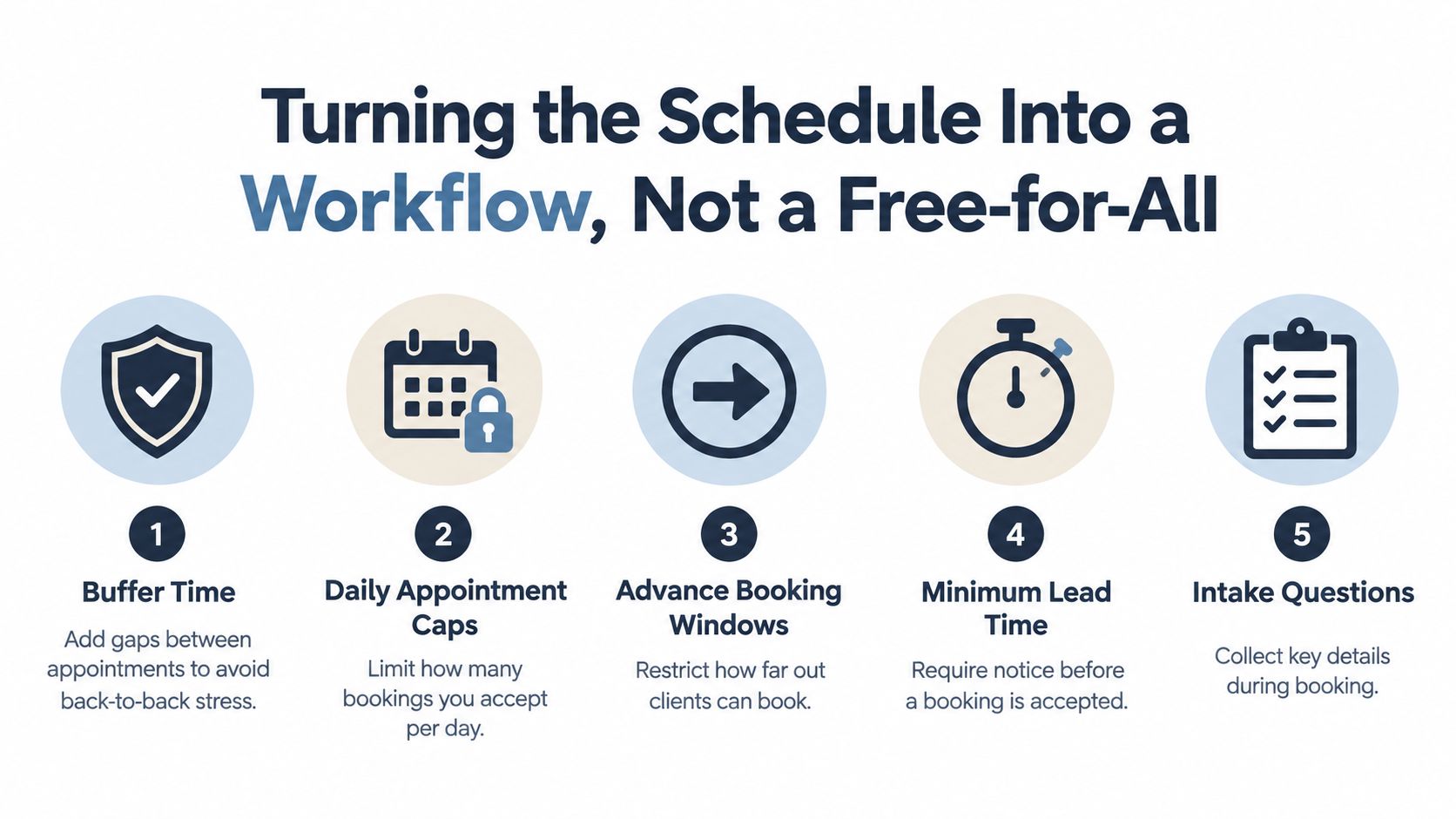
Google gives you the controls to prevent that. Appointment schedules support buffer time between bookings and a maximum number of appointments per day, and you can change the default minimum notice instead of accepting it.
Map Each Control to a Real Problem
- Buffer time: A plumber adds travel and cleanup gaps so a job that overruns doesn't automatically make the next customer a late arrival.
- Daily caps: A dental practice limits online bookings per day, protecting space for urgent patients who call rather than book ahead.
- Advance booking window: A solo contractor stops tentative work landing months out, before pricing or availability is realistic.
- Minimum lead time: A clinic requires enough notice to review notes and prepare a room, rather than discovering a booking minutes before it starts.
- Intake questions: A lawyer collects the matter type and conflict details before a slot is confirmed, not during the first five minutes of the meeting.
These settings only help if every channel obeys them. During a call, an assistant should offer the next valid time when the requested one is blocked, explain it plainly, and capture the same intake answers the form would collect. Afterward, confirmations need to reach the customer quickly, which is where a reliable text message to confirm the appointment closes the loop. That's a workflow. A bare link is just an invitation.
Your Google Calendar Appointment Booking Checklist
Keep this short enough to use before you publish.
- Build in order: Create the schedule on desktop, set duration, title, time zone, and weekly availability, then set the booking window and minimum lead time.
- Check every calendar: Include each calendar that should block time, and confirm your account plan supports the pages and checks you need.
- Add operational limits: Set buffers, a daily cap, location, and intake questions before sharing the link.
- Run scenario tests: Book, block, adjust a holiday, cancel, and confirm slots disappear and reopen exactly as your rules intend.
- Test by phone: Call your own number, request an invalid time, and confirm you get a valid alternative or a human handoff.
- Protect trust: Automate routine booking in the caller's language, and escalate complaints, emergencies, disputes, and sensitive requests.
Start with one service, one calendar done properly, and one clear escalation path. Add the next channel only when the basics hold under a real call.
---
If your booking page is ready but your phone still goes unanswered on jobs, rednea can greet callers in their language, check your Google Calendar in real time, and book only the slots your rules allow. Visit rednea to set up that phone front door and keep the calls your link was never going to catch.
Try rednea, no strings attached
AI phone assistant for business. Hear a live demo in your browser, book a call with our team, or get started — from £90/month, cancel monthly, no minimum term.
GDPR-compliant · EU & UK GDPR · Multilingual